

Slow loading speeds and security vulnerabilities can quietly ruin your website’s traffic and reputation. Fortunately, Cloudflare offers a powerful, free solution by acting as a protective shield that speeds up your content delivery network (CDN) and blocks malicious traffic before it ever reaches your server. In this quick step-by-step guide, we will show you exactly how to connect your domain to Cloudflare and instantly upgrade your website’s performance and security in under 15 minutes.
1. Log into Cloudflare. Navigate to Domain option.
2. Under Domain, choose Overview.
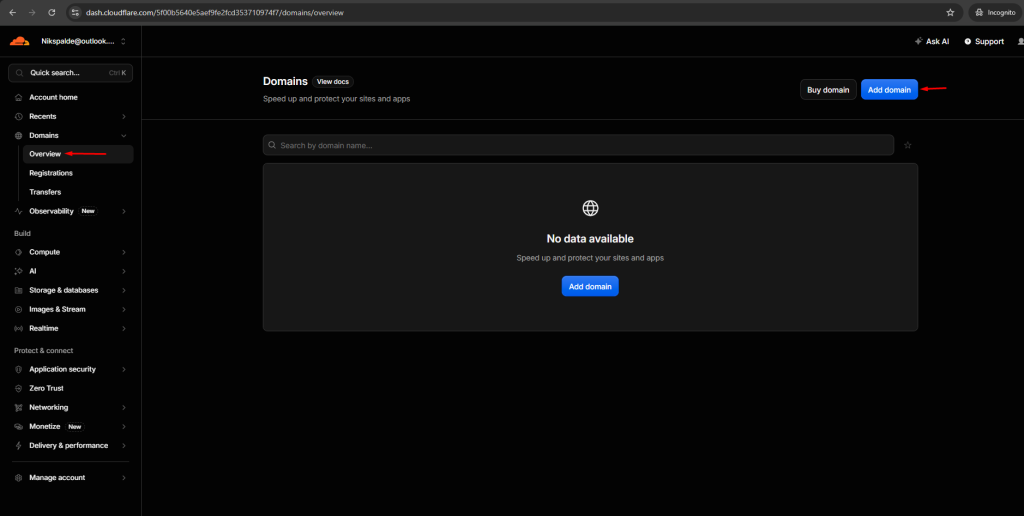
3. You will get Add Domain option.
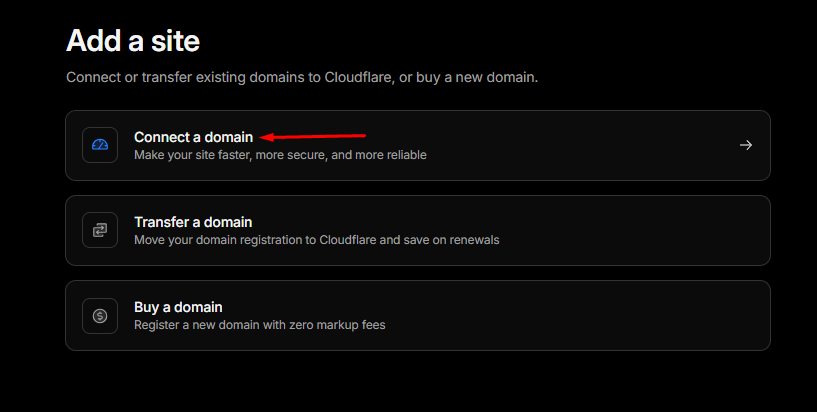
4. Add new website and connect a domain.
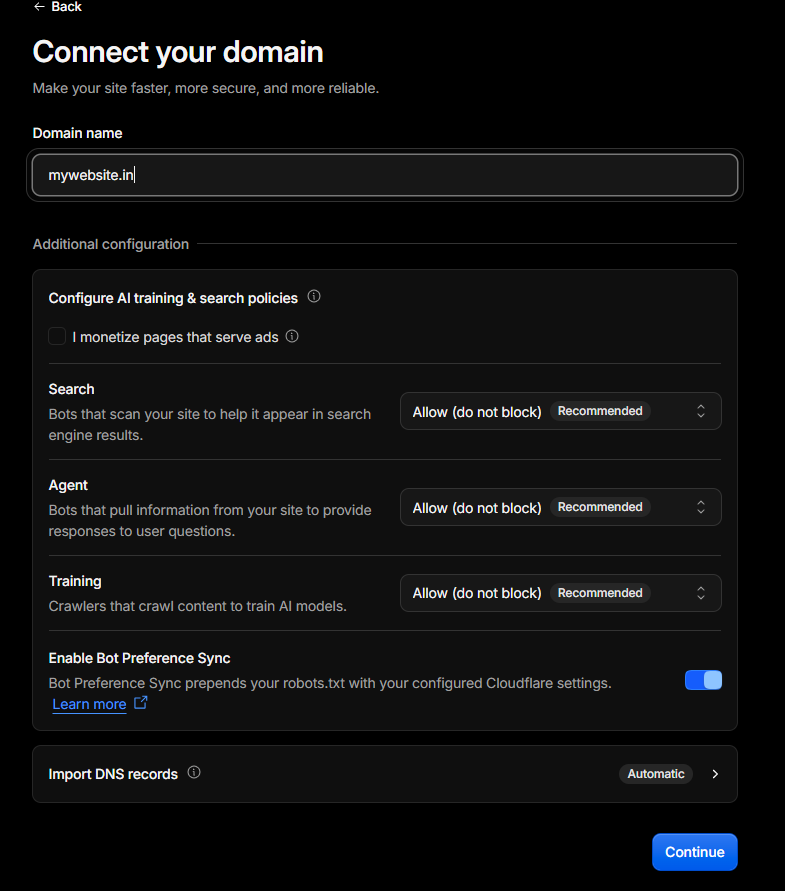
5. Enter the domain name which you want to connect. You can enable/disable the advanced configurations as well.
6. Select the required plan.
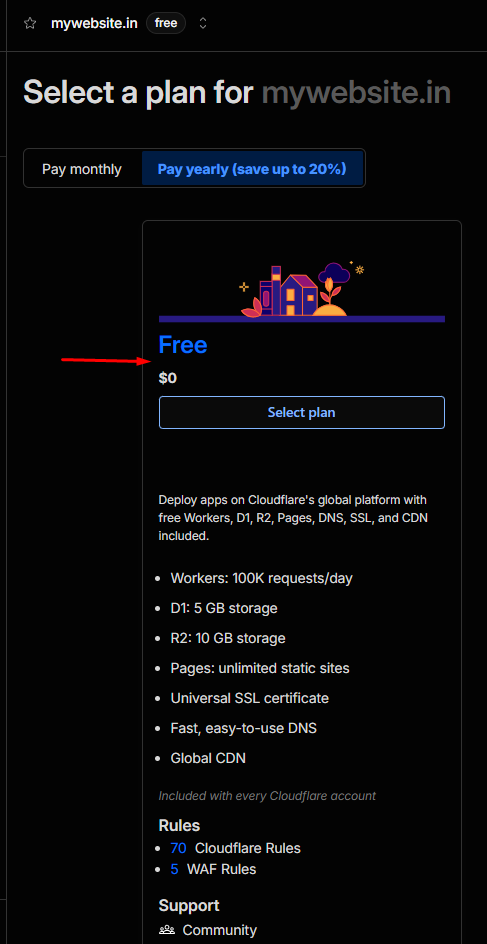
Then, update your nameservers to activate Cloudflare.
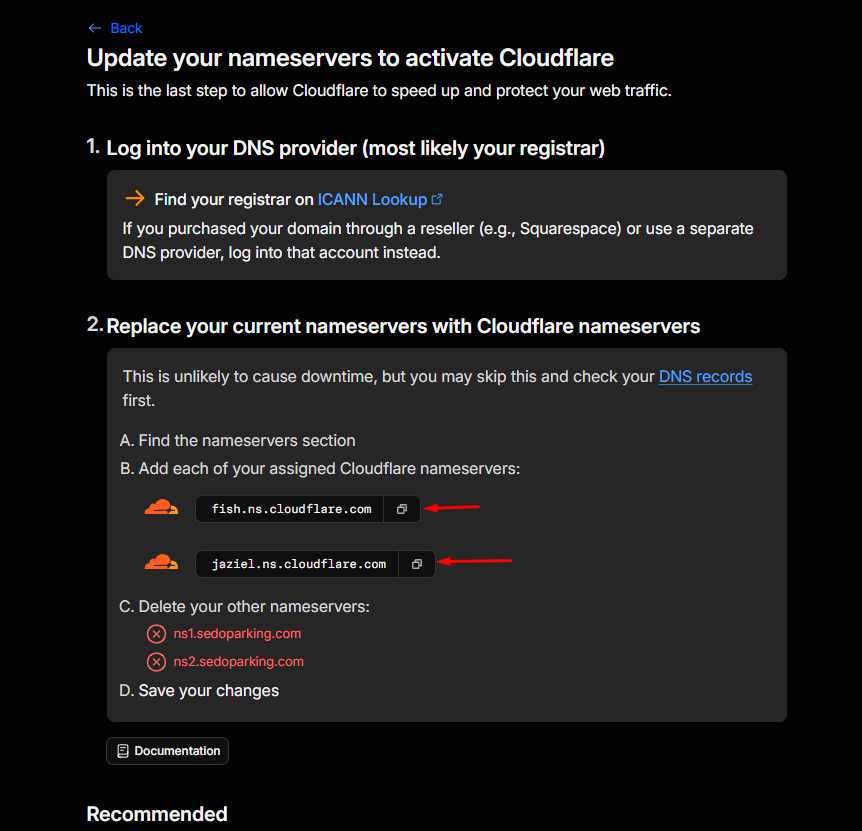
Once activated, you have to open MilesWeb client area to enable Cloudflare on your domain.
7. Navigate to Domain option. You will get the list of hosted domains. Click Manage to proceed further.
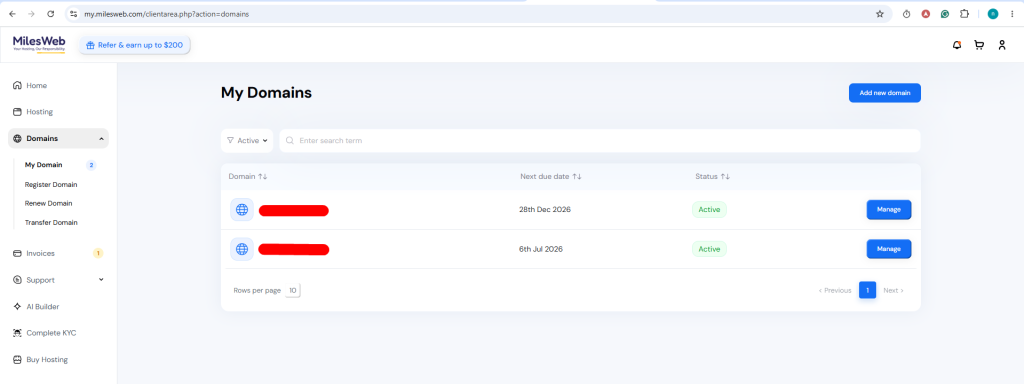
You will get all domain related details like nameservers, active status, and domain extensions.
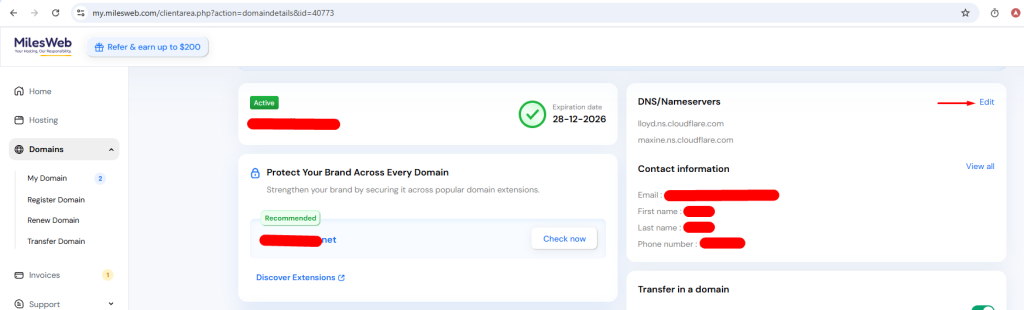
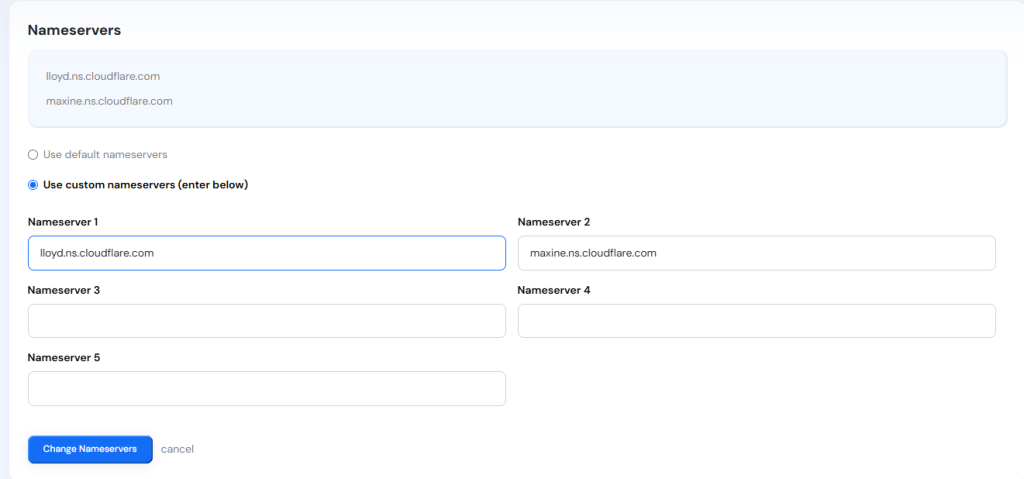
8. Choose the nameserver on which your domain is pointed.
Conclusion
Enabling Cloudflare on your domain is one of the quickest, most impactful optimizations you can make for your website. By simply routing your traffic through Cloudflare’s network, you unlock elite-level speed, robust DDoS protection, and free SSL encryption at zero cost. Once your nameservers update, you can sit back and monitor your new, high-performance site directly from the Cloudflare Dashboard.