

Facing any technical issues in your web hosting account? Follow the simple steps below to raise/submit a ticket at MilesWeb:
1. Login to MilesWeb Client Area dashboard.

2. Click on the Support icon and then click on the Report Issue.
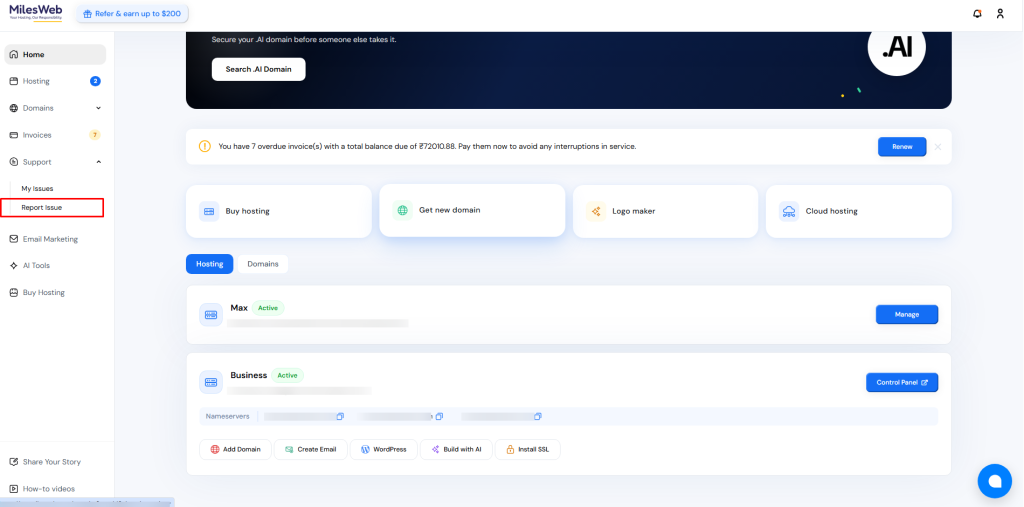
3. You will be redirected to the Tickets page.
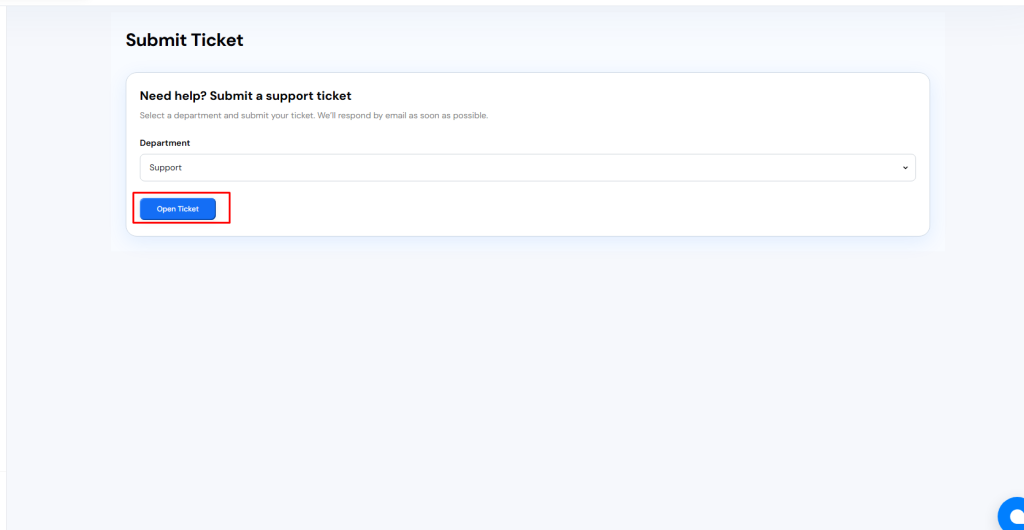
Click on Open Ticket to raise a new query to our support team.
4. Before that you need select the department for which you want to submit the ticket. There are different options like, Billing, Support, CRM, etc.
For example, here we have selected Support.
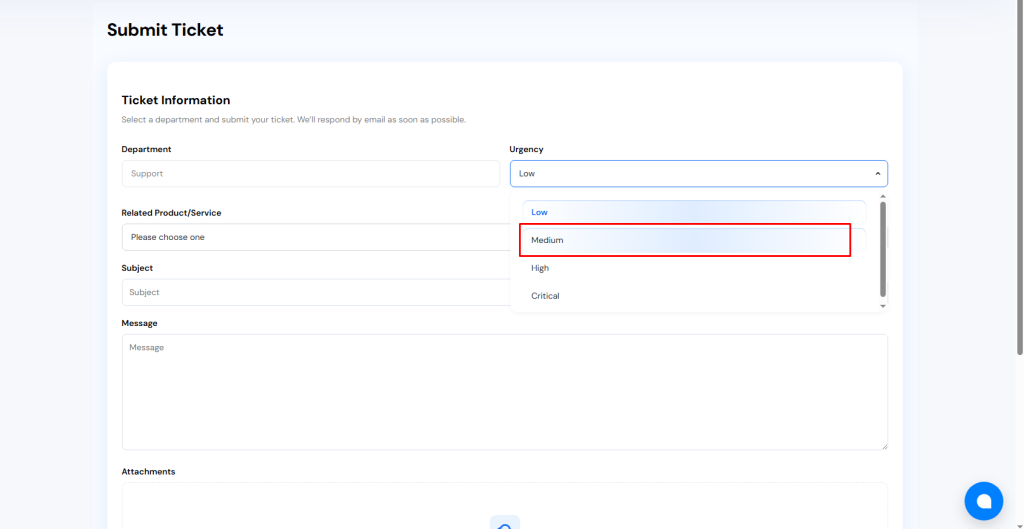
5. The Migrations ticket window will open. Fill up the required fields like Subject line, Message highlighting your issues briefly, and attach supporting documents/screenshots of the error.
6. Also, from the dropdown under Urgency, select if your query is of Low, Medium, High or Critical Here, we have selected, Medium.
8. Now click on the Submit button.
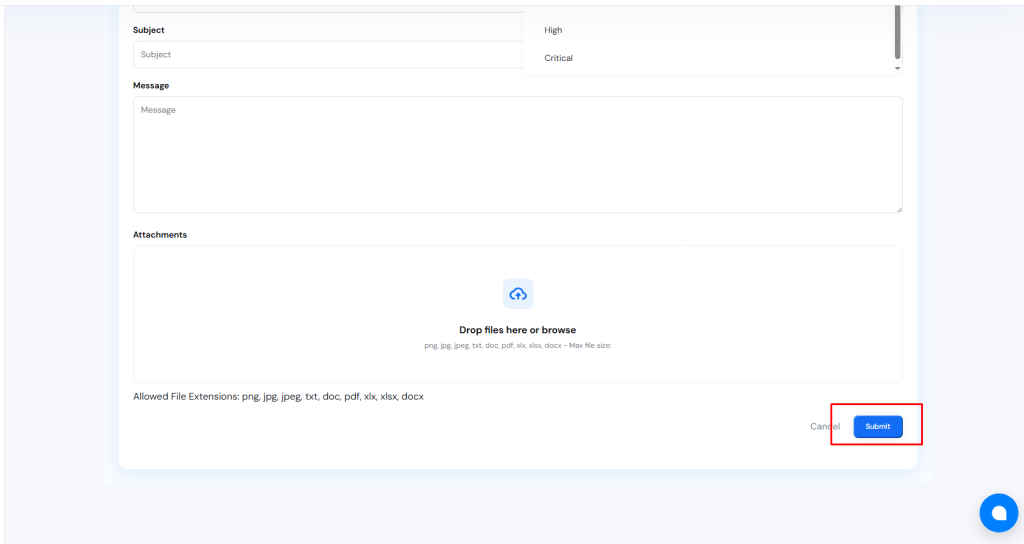
You will get a message with your ticket id once your ticket is submitted successfully.
In this way, you can easily create and submit a ticket from the MilesWeb client area.