

Step 1: Access the Server
SSH Access:
If you are unable to access the server via SSH or PuTTY, try logging in through VNC to regain server access.
Step 2: Check if the Server Is Unresponsive
If the server appears stuck or completely unresponsive, perform a reboot to restore connectivity.
Step 3: Review Logs After Reboot
Once the server has rebooted and is accessible, review the system logs to identify the root cause of the issue.
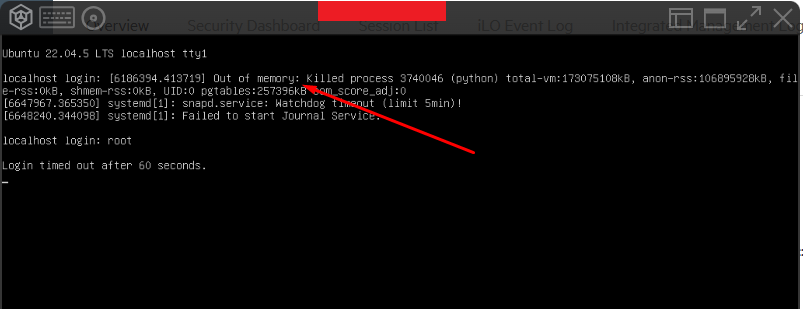
Check Memory Logs
Verify whether the server ran out of memory by running:
cat /var/log/messages | grep memory
Check CPU Usage
To identify high CPU usage, run:
sar -q
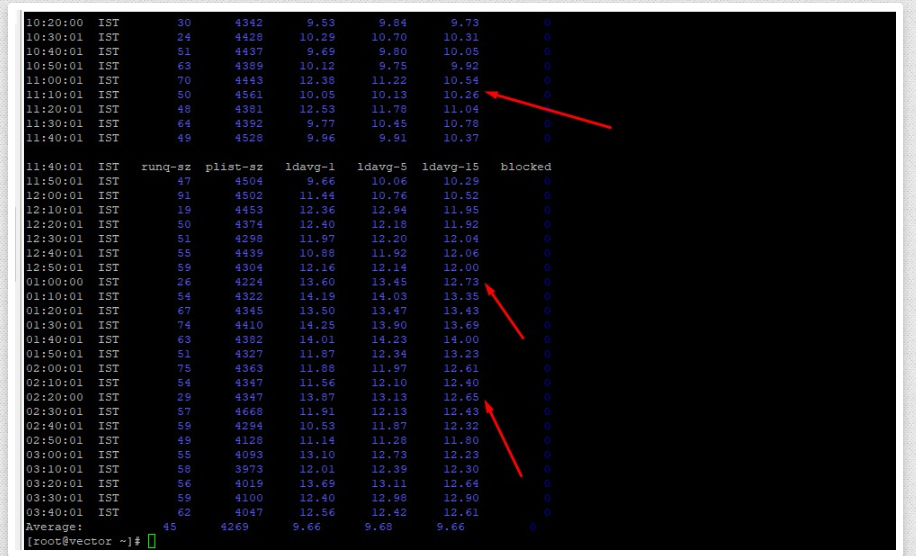
This command helps detect system load and processes consuming excessive CPU resources.
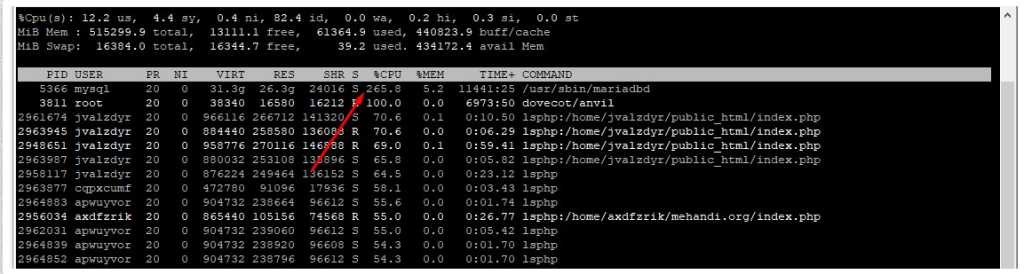
You can also monitor real-time resource usage using:
Top
Step 4: Take Preventive Action
Based on your findings:
- Optimize scripts or applications consuming excessive resources
- Kill unnecessary processes
- Upgrade server resources (RAM/CPU) if required
These steps help prevent similar issues from recurring in the future.