

 Jyoti Prasad
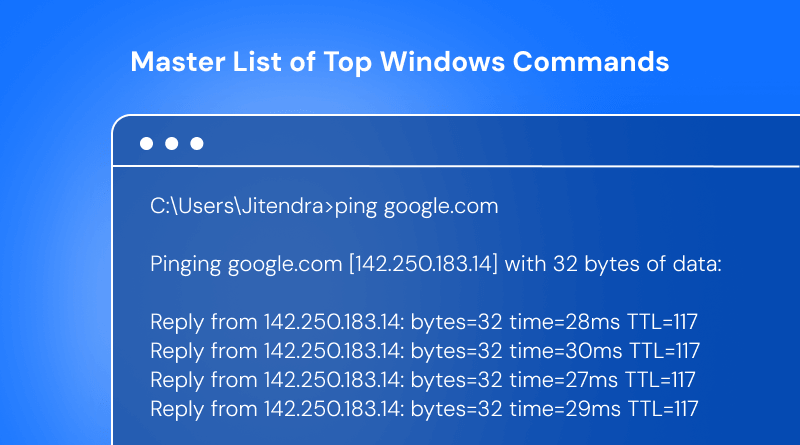
Many people believe that Windows’ “Black Box” (Windows Command Prompt) is an outdated tool with limited relevance today. However, it’s still highly capable. With just one command, you can address OS kernel issues, perform large-scale file operations, or troubleshoot networks quickly from almost anywhere. If a GUI is the steering wheel of your computer, the command-line interface is the engine that powers it!
To help you further, here’s a comprehensive list of Windows commands. This not only simplifies your work, but you also get to experience superfast Windows server performance. For a more insightful read, all the commands are organized into functional categories – from basic file manipulation to advanced Active Directory management.
In simple terms, you will discover in this guide:
- Essential Commands: Command-line file & folder navigation & management.
- Storage Management: Detailed information on diskpart, virtual disks, and fixing/creating volumes.
- Networking: Utilities for repairing internet connectivity and administering remote systems.
- Automation: Using bitsadmin and logic-based scripting for time-saving automation.
- Enterprise Operations: “God Mode” command strings that network administrators use to manage complete networked domains.
Welcome to this comprehensive, terminal-based guide, which is designed to serve as a valuable reference for Windows commands. Whether you’re a student preparing for exams or a developer seeking efficiency, this blog aims to help you achieve tasks quickly and accurately.
So let’s get started and open the terminal.
Other Helpful Guide: Linux Commands: Guide to Linux Basics and Command Line Usage
Table Of Content
What Are Windows Commands?
Simply put, Windows commands are the programming language of your operating system. So, although most users interact with Windows using mouse-driven menu items (the Graphical User Interface or GUI), using Windows commands enables you to skip the visual layer (GUI) of your OS and talk directly to the OS’s core functionality.
In a way, you can think of Windows Commands as the command-line equivalent of a remote control for your computer. Instead of having to click through five different menu items to change a setting, you just type in a direct command via Command Prompt (CMD) or PowerShell and complete whatever task you want.
Windows commands help you perform multiple tasks quickly, precisely, and with “under-the-hood” access to functionality that would normally require multiple clicks with a mouse to perform these same tasks. Some examples of this are using Windows commands to repair a corrupted disk drive, map a network drive, and create automation routines so you don’t have to manually back up files every day, and the list could continue!
Related Read: How to Start Command Prompt As Admin from Windows
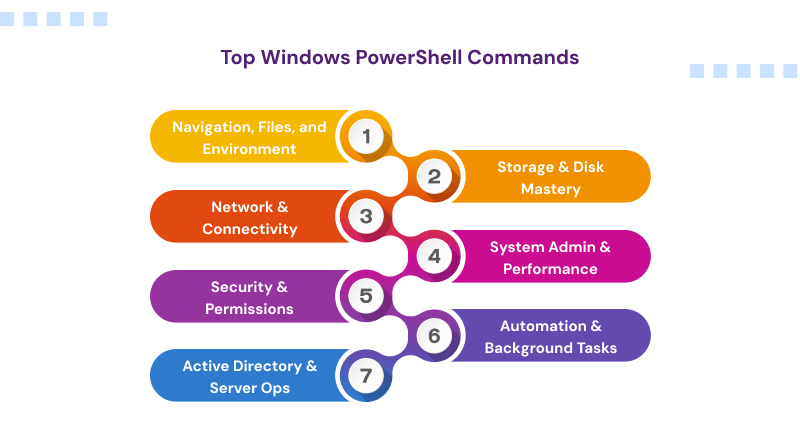
Chapter 1: Windows PowerShell Navigation, Files, and Environment Commands
To effectively manage servers, you must first learn how to manage and perform basic management of system files and the command prompt. The below Windows commands teach you how to check on the state of your system in this section.
– Windows Commands for File & Directory Management
- cd / chdir: Changes the current directory or displays the path of the current folder.
- dir: Lists the files and subdirectories within a directory.
- md / mkdir: Creates a new directory or folder.
- rd / rmdir: Removes (deletes) a directory.
- copy: Copies one or more files to another location.
- xcopy: A more powerful version of copy that can handle entire directory trees.
- robocopy: The “Robust File Copy” tool; best for large transfers as it can resume after interruptions.
- move: Moves files from one directory to another or renames directories.
- ren / rename: Renames a file or a set of files.
- del / erase: Deletes one or more files from the system.
- type: Displays the contents of a text file on the screen.
- more: Displays output one screen at a time (useful for long text files).
- tree: Graphically displays the folder structure of a drive or path.
- attrib: Displays or changes file attributes (Read-only, Hidden, System, etc.).
- where: Locates and displays the path of a specific file or pattern.
– Windows Commands for Console & Environment Settings
- cls: Clears the command prompt window of all previous text.
- color: Changes the background and foreground colors of the console.
- prompt: Changes the appearance of the command prompt (e.g., adding the time or date).
- title: Sets the window title for the current CMD session.
- path: Displays or sets the search path for executable files.
- set: Displays, sets, or removes environment variables (like %PATH% or %TEMP%).
- setlocal / endlocal: Limits the scope of environment changes to a specific batch file or session.
- setx: Sets environment variables permanently (across future sessions).
- doskey: Edits command lines, recalls commands, and creates macros.
- chcp: Displays or sets the active code page number (useful for different languages).
- cmd: Starts a new instance of the Windows command interpreter.
- powershell / pwsh: Launches the PowerShell environment from within CMD.
– Windows Commands for Basic System Information & Utilities
- systeminfo: Displays detailed configuration information about the computer and its OS.
- ver: Displays the specific version of Windows that you are running.
- hostname: Simple command that returns the name of the computer.
- date: Displays or sets the current system date.
- time: Displays or sets the current system time.
- tzutil: The Time Zone Utility; used to view or change the system time zone.
- exit: Quits the CMD.exe program or the current batch script.
- help: Provides a list of Windows commands or detailed help for a specific command.
Chapter 2: Windows PowerShell Storage & Disk Mastery Commands
Part of an administrator’s job involves managing all physical drives and partitions on a computer or server, as well as managing virtual disks (vdisk). In addition to explaining how to format the drives or partitions on them, this section of the Windows PowerShell commands explains how to manage drives at both the volume level and the vdisk level using advanced volume management and vdisk manipulation.
– Windows Commands for Disk Partitioning & Management (diskpart)
- diskpart: The master command-line utility for disk partitioning.
- list disk: Displays a list of physical disks currently attached to the system.
- select disk: Shifts focus to a specific disk for further operations.
- online disk / offline disk: Brings a disk online or takes it offline.
- detail disk: Shows properties of the selected disk (ID, status, path).
- attributes disk: Displays, sets, or clears the flags (like Read-Only) on a disk.
- convert basic / convert dynamic: Switches a disk between basic and dynamic storage types.
- convert gpt / convert mbr: Changes the partition style of an empty disk.
- clean: Removes all partition or volume formatting from the disk with focus.
- rescan: Locates new disks that may have been added to the computer.
- uniqueid: Displays or sets the GUID or MBR signature of a disk.
– Windows Commands for Volume & Partition Control
- assign: Assigns a drive letter or mount point to a volume.
- active: Marks the selected partition as the active boot partition.
- create partition primary: Creates a primary partition on the current drive.
- create partition logical / extended: Manages logical and extended partition structures.
- create partition efi / msr: Creates specialized system partitions.
- delete partition / delete volume: Removes the selected partition or volume.
- extend: Expands the volume with focus into adjacent unallocated space.
- shrink: Reduces the size of the selected volume.
- filesystems: Displays current and supported file systems for a volume.
- format: Prepares a disk/volume for use by creating a file system (NTFS, FAT32, etc.).
- label: Creates, changes, or deletes the volume label (name) of a disk.
- vol: Displays the disk volume label and serial number.
– Windows Commands for Virtual Disk (vdisk) Operations
- attach-vdisk: Attaches a virtual hard disk (VHD/VHDX) so it appears as a local drive.
- detach-vdisk: Disconnects a virtual hard disk.
- create vdisk: Creates a new virtual hard disk file.
- expand vdisk: Increases the maximum size available on a virtual disk.
- compact vdisk: Reduces the physical size of a dynamically expanding VHD file.
- merge vdisk: Merges a child disk with its parent disk in a differencing chain.
- detail vdisk: Shows detailed information about a virtual disk file.
– Windows Commands for Advanced File System Utilities (fsutil & more)
- fsutil: A powerful multi-tool for performing advanced file system tasks.
- fsutil dirty: Manages the “dirty bit,” which triggers a disk check on reboot.
- fsutil quota: Manages NTFS quotas to limit user disk space usage.
- fsutil 8dot3name: Manages the short-name settings for files.
- fsutil behavior: Queries or sets various file system behaviors.
- fsutil repair: Self-healing NTFS utility to repair minor corruption.
- chkdsk: Checks a disk and displays a status report; can fix errors with /f.
- chkntfs: Displays or modifies the checking of disks at boot time.
- defrag: Optimizes and defragments files on local volumes to improve performance.
- mountvol: Creates, deletes, or lists a volume mount point.
- compact: Displays or alters the compression of files on NTFS partitions.
- cipher: Displays or alters the encryption of directories or files.
- freedisk: Checks for free disk space and returns a success/fail code.
– Windows Commands for RAID & Shadow Copies
- create volume raid: Creates a RAID-5 volume set.
- create volume mirror: Creates a mirrored volume (RAID-1).
- create volume stripe: Creates a striped volume (RAID-0).
- diskraid: Launches the RAID storage subsystem management tool.
- vssadmin: Volume Shadow Copy Service tool; used to manage system restore points and backups.
- list shadows: Displays all existing volume shadow copies.
- delete shadows: Deletes volume shadow copies.
Chapter 3: Windows PowerShell Network & Connectivity Commands
The commands in this section are used extensively for troubleshooting and configuring the network. This includes performing basic tests of connectivity such as pinging another computer on your network and using the netsh command to manage how your computer communicates with the rest of the world.
– Windows Commands for Basic Connectivity & Diagnostics
- ping: The go-to tool for testing connectivity between your computer and a network node.
- tracert: Traces the path packets take to a destination, showing every “hop” (router) along the way.
- pathping: A hybrid of ping and tracert that detects packet loss at specific router hops.
- hostname: Displays the computer’s current network name.
- getmac: Returns the Media Access Control (MAC) address of the network adapters.
- finger: Displays information about a user on a specified remote computer.
- arp: Displays and modifies the Address Resolution Protocol (ARP) cache.
- nslookup: Queries DNS to find IP addresses or domain name information.
- Includes sub-commands: set all, set debug, set domain, lserver, and root.
– Windows Commands for IP Configuration & Interfaces
- ipconfig: Displays all current TCP/IP network configuration values and refreshes DHCP/DNS settings.
- netstat: Displays active TCP connections, ports on which the computer is listening, and Ethernet statistics.
- route: Manages the local IP routing table (add, delete, or print routes).
- netsh: The Network Shell—a massive command-line utility for configuring almost any network aspect.
- netsh interface: Configures IP addresses, gateways, and DNS servers.
- netsh advfirewall: Manages the Windows Advanced Firewall rules.
- netsh wlan: Configures Wireless (Wi-Fi) settings and profiles.
- netsh winsock: Resets the winsock catalog (often used to fix “no internet” bugs).
- netsh http: Manages HTTP settings and SSL certificate bindings.
- netsh lan / mbn: Manages wired and mobile broadband network settings.
– Windows Commands for Shared Resources & User Accounts (net commands)
- net view: Displays a list of resources (computers/shares) being shared by a computer.
- net use: Connects/disconnects a computer to a shared resource (like mapping a network drive).
- net share: Manages shared printers and folders.
- net user: Adds, removes, or modifies local user accounts.
- net print: Displays information about a specified printer queue.
- net config: Displays configuration information for the Workstation or Server service.
– Windows Commands for Remote Access & Specialized Protocols
- mstsc: Opens the Remote Desktop Connection window.
- telnet: Communicates with another host using the Telnet protocol (includes sub-commands like open, close, send).
- tftp: Transfers files to and from a remote computer running the Trivial File Transfer Protocol.
- ftp: A full-featured FTP client for transferring files over a network.
- Includes sub-commands: mget, mput, ascii, binary, open, bye, and ls.
- winrs: Windows Remote Shell; used to execute commands on a remote host.
- msg: Sends a text message to a specific user or session on a remote server.
- rpcinfo / rpcping: Utilities for diagnosing Remote Procedure Call (RPC) connectivity.
– Windows Commands for Network Management & Policies
- ipxroute: Displays and modifies information about the IPX routing tables.
- nbtstat: Displays protocol statistics and current TCP/IP connections using NBT (NetBIOS over TCP/IP).
- showmount: Displays information about Shared Directories on an NFS server.
- nfsstat / nfsshare / nfsadmin: Management tools for Network File System (NFS) services.
- dnscmd: A command-line interface for managing DNS servers.
Chapter 4: Windows PowerShell System Admin & Performance Commands
This chapter contains the system’s “Control Center” (commands), where you can monitor the health of your computer or server, manage processes that are currently running on the computer or server, edit the Windows Registry, and fix damaged system files. If your computer is having problems, you can fix them with these Windows server commands.
– Windows Commands for Process & Task Management
- tasklist: Displays a list of all currently running processes, including their Memory usage and Process ID (PID).
- taskkill: Used to stop or “kill” a running process or application; essential for unresponsive programs.
- query process / qprocess: Displays information about processes (specifically useful in Remote Desktop environments).
- query session / qwinsta: Lists all sessions on a Remote Desktop Session Host server.
- query user / quser: Shows information about users currently logged into the system.
- logoff: Terminate a session and log out the user.
- tskill: A simpler tool to end a process, often used in Terminal Services.
- shutdown: Allows you to shut down, restart, or hibernate the local or a remote computer.
– Windows Commands for System Repair & Maintenance
- sfc (System File Checker): Scans and repairs corrupted Windows system files (e.g., sfc /scannow).
- dism: Deployment Image Servicing and Management; used to repair the Windows Image (often used when sfc fails).
- gpupdate: Forces an immediate update of local and Active Directory Group Policy settings.
- gpresult: Displays Group Policy settings and Resultant Set of Policy (RSOP) for a user or computer.
- bootcfg: Configures, queries, or changes the boot settings in the boot.ini file (older systems).
- bcdedit: The modern tool for managing Boot Configuration Data (BCD) for the Windows Boot Manager.
- bcdboot: Used to quickly set up a system partition or repair the boot environment on a hard drive.
- msiexec: Provides the means to install, modify, and perform operations on Windows Installer (.msi) packages.
– Windows Commands for Registry & Services Configuration
- reg: The console registry tool; allows you to add, edit, export, and import registry keys.
- Sub-commands: reg add, reg delete, reg query, reg export, reg import, reg load.
- regini: Used to change registry permissions and values from a text file.
- regsvr32: Registers or unregisters DLL (Dynamic Link Library) files in the Windows Registry.
- sc (Service Control): Communicates with the Service Control Manager to start, stop, or configure Windows Services.
- Sub-commands: sc query, sc config, sc create, sc delete.
– Windows Commands for Performance & Diagnostics
- perfmon: Opens the Windows Performance Monitor to track CPU, RAM, and Disk usage in real-time.
- typeperf: Writes performance counter data to the command window or to a log file.
- logman: Manages and schedules performance counter and event trace log collections.
- tracerpt: Processes event trace logs or real-time data from performance counters.
- eventcreate: Enables an administrator to create a custom event ID and message in a specific event log.
- wevtutil: Enables you to retrieve information about event logs and publishers.
- driverquery: Displays a list of all installed device drivers and their properties.
- winsat: The Windows System Assessment Tool; benchmarks your CPU, RAM, and Graphics.
– Windows Commands for Hardware & Environment Setup
- mode: Configures system devices, such as COM ports, LPT ports, and display settings.
- dispdiag: Logs a series of diagnostics about the display configuration.
- pnpunattend / pnputil: Tools for managing driver packages and PnP (Plug and Play) device installations.
- msinfo32: Opens the System Information window to see detailed hardware specs.
- dxdiag: Opens the DirectX Diagnostic Tool to troubleshoot video and sound issues.
Chapter 5: Windows PowerShell Security & Permissions Commands
Security is the barrier preventing unauthorized entry into your operating system. This chapter covers Windows PowerShell commands that offer security by locking down folders. The following commands also help you identify who has access to your data, encrypt sensitive data, and audit system activities. This eliminates the risk of unwanted changes being made to your system.
– Windows Commands for Access Control & Permissions (icacls)
- icacls: The modern tool for displaying or modifying Discretionary Access Control Lists (DACLs) for files and folders.
- cacls: An older version of icacls used for displaying or modifying file permissions (deprecated but still functional).
- takeown: Allows an administrator to recover access to a file that was denied by taking ownership of it.
- whoami: Displays the current user, group, and privileges information for the logged-in user.
- cmdkey: Creates, lists, and deletes stored user names and passwords or credentials.
– Windows Commands for Encryption & BitLocker (manage-bde)
- cipher: Displays or alters the encryption of directories and files on NTFS partitions; also used to securely overwrite deleted data.
- manage-bde: The primary tool for configuring BitLocker Drive Encryption.
- Sub-commands: status, on, off, pause, resume, lock, unlock, autounlock, protectors, tpm.
- repair-bde: Attempts to reconstruct critical parts of a corrupted BitLocker-encrypted drive.
- fveupdate: Used for updating BitLocker full volume encryption settings.
- certutil: A powerful utility used to dump and display certification authority (CA) information and manage certificates.
- certreq: Used to request certificates from a certification authority.
– Windows Commands for Auditing & Security Policy
- auditpol: Displays or modifies the system’s security auditing policy.
- Sub-commands: get, set, list, backup, restore, clear, remove, resourcesacl.
- secedit: Configures and analyzes system security by comparing your current configuration against a security template.
- Sub-commands: analyze, configure, export, import, validate, generaterollback.
- gpfixup: Fixes domain name dependencies in Group Policy Objects and links after a domain rename.
- dcgpofix: Restores the Default Domain Policy and Default Domain Controllers Policy to their original state.
– Windows Commands for Identity & Authentication
- klist: Displays the tickets for the currently logged-on user (Kerberos).
- ksetup: Used to configure connections to a Kerberos realm (often used in non-Windows environments).
- Sub-commands: addhosttorealmmap, addkdc, addrealmflags, domain, mapuser.
- ktpass: Configures the server principal name for the host or service in Active Directory.
- setspn: Reads, modifies, and deletes the Service Principal Names (SPN) for an Active Directory service account.
- klist purge: Clears all Kerberos tickets for the current session.
Chapter 6: Windows PowerShell Automation & Background Tasks Commands
Time is money in the digital realm. The emphasis of this chapter is to assist you in managing tasks by scheduling jobs, utilizing background file transfers, and using logic to automate repetitive tasks. Thus, this Windows command prompt helps you save much time and effort.
– Windows Commands for Task Scheduling & Automation
- schtasks: This command is the successor for the ‘at’ command; used to create, delete, query, change, run, and end scheduled tasks on a local or remote computer.
- at: The legacy scheduler (now deprecated but often still found in older scripts) used to run commands at a specific time.
- waitfor: Synchronizes computers on a network by sending or waiting for a specific signal.
- timeout: Pauses a batch file or command-line session for a specified number of seconds.
- pause: Suspends processing of a batch program and displays a message prompting the user to press a key.
- choice: Prompts the user to make a selection from a list of choices, allowing for basic logic in automation.
– Windows Commands for Background Intelligent Transfer Service (bitsadmin)
This massive sub-set is dedicated to managing background file transfers that don’t interrupt your foreground work.
- bitsadmin /create: Creates a new BITS transfer job.
- bitsadmin /addfile: Adds a file to an existing BITS job.
- bitsadmin /resume: Starts or resumes a suspended BITS job.
- bitsadmin /suspend: Pauses a BITS job.
- bitsadmin /complete: Finalizes a completed job (moves the temp file to the final destination).
- bitsadmin /cancel: Deletes a BITS job from the queue.
- bitsadmin /list: Shows all BITS jobs in the current user’s queue.
- bitsadmin /monitor: Real-time monitoring of BITS transfers.
- bitsadmin /setpriority: Adjusts how much bandwidth the job can use (Foreground, High, Normal, Low).
- bitsadmin /util: Utility functions like repairservice, version, and getieproxy.
– Windows Commands for Batch Scripting Logic & Flow
- if: Performs conditional processing in batch programs (e.g., “If file exists, then…”).
- for: Runs a specified command for each file in a set of files (looping).
- forfiles: Selects a file or a set of files and executes a command on that set (great for auto-deleting old logs).
- goto: Directs the Windows command interpreter to a labeled line in a batch program.
- call: Calls one batch program from another without stopping the parent program.
- start: Starts a separate window to run a specified program or command.
- shift: Changes the position of replaceable parameters in batch files (useful for handling many arguments).
- rem: Used to add comments (remarks) in batch files, which the computer ignores during execution.
- echo: Displays messages or turns on/off the command-echoing feature.
– Windows Commands for Archiving & Deployment
- makecab: Compresses files into a Cabinet (.cab) file for smaller storage or distribution.
- diantz: An older name for the makecab tool.
- expand: Extracts files from compressed Cabinet (.cab) files.
- extract: The legacy tool for extracting files from CAB archives.
- msiexec: Provides the engine for installing and configuring Windows Installer packages.
Chapter 7: Windows PowerShell Active Directory & Server Ops Commands
The “Enterprise Tier” (Windows command prompt) represents the most commonly used commands by system administrators who need to maintain domain controllers and directory services and perform large-scale backups of servers. The “Enterprise Tier” is where you can manage an entire organization’s infrastructure.
– Windows Commands for Active Directory & Domain Management
- dcdiag: The Domain Controller Diagnostic tool; analyzes the state of domain controllers and reports any problems.
- adprep: Prepares a Windows forest or domain for an upgrade to a newer version of Windows Server.
- dcpromo: The legacy command to promote a server to a Domain Controller (now largely replaced by Server Manager).
- dfsrmig: The migration tool for the Distributed File System (DFS) Replication service.
- repadmin: Assists administrators in diagnosing and fixing Active Directory replication problems.
- ntdsutil: A management tool for the Active Directory Database (NTDS); used for authoritative restores and metadata cleanup.
- dfsdiag: Provides diagnostic information for Distributed File System (DFS) namespaces.
- Sub-commands: testdcs, testdfsconfig, testdfsintegrity, testreferral.
– Windows Commands for Network Domain Utilities (netdom)
- netdom: The primary tool for managing Windows domains and trust relationships.
- netdom join: Joins a computer to a domain.
- netdom move: Moves a computer from one domain to another.
- netdom renamecomputer: Changes the network name of a computer within the domain.
- netdom trust: Manages trust relationships between different domains.
- netdom verify: Verifies the secure channel between a workstation and the domain controller.
– Windows Commands for Enterprise Backup & Recovery (wbadmin)
- wbadmin: The modern Windows Server Backup utility allows you to back up and restore the OS, volumes, and files.
- start backup: Runs a one-time backup job.
- get versions: Lists details of backups available for recovery.
- start systemstatebackup: Backs up the system state (Registry, AD, boot files).
- start recovery: Performs a recovery of files or volumes.
- delete catalog: Deletes the backup catalog on the local computer.
- ntbackup: The legacy backup tool used in Windows XP and Server 2003.
– Windows Commands for Server-Level Network Services
- dnscmd: The comprehensive command-line tool for managing DNS servers and zones.
- winsat mem / mfmedia: Specialized benchmarks for server memory and media performance.
- nltest: Used to test trust relationships and locate domain controllers.
- nlbmgr: Opens the Network Load Balancing Manager for managing high-availability clusters.
- nfsadmin: Manages the Server for NFS and Client for NFS services.
– Windows Commands for Remote Management & Deployment
- wdsutil: The Windows Deployment Services utility; used to manage the images and servers used to install Windows over a network.
- wecutil: Manages subscriptions to events forwarded from remote computers.
- servermanagercmd: The legacy command-line tool for installing or removing server roles and features.
- mqbkup / mqsvc: Management and backup tools for Message Queuing (MSMQ) services.
Tip for Power Users
Save this blog as one of your bookmarks for fast access anytime you come across obstacles within your operating system. The more frequently you use these command prompts to execute commands within your OS, the more apparent it becomes that the real strength of Windows lies not within the interface itself but rather in the ability of the OS to accept and execute instructions.
Wrapping Up
Being an effective admin is about knowing how to use the commands; administrators just need to know which tool to use for each problem they face. You don’t need to be a “hacker” or an elite developer to be able to use the examples of all these Windows command prompts. These commands help you complete a task quickly and efficiently without the need for mouse clicks and a visual interface. Whether you are using robocopy to circumvent a failing file transfer or sfc /scannow to resolve a blue screen system crash, using commands increases your speed.
The Command Prompt may seem intimidating; however, it is actually the most efficient method of communicating with your computer. You can use this method on simple tasks such as running network diagnostics or file automation scripts, and you will find yourself using the keyboard much more frequently than the mouse.
So what are you waiting for? Let’s start with Windows commands right now.
FAQs
1. How do I gain administrator access to run command prompts?
To run a command as an administrator, launch Command Prompt (cmd.exe) or PowerShell (powershell.exe) as an administrator. You can launch these programs by selecting the Start button and typing cmd (for command prompt) or powershell (for PowerShell) to locate the application you want. Then right-click on the application icon and select Run as administrator. Once the application has been launched as an administrator, you can run some of the more powerful “heavy hitters,” such as sfc, diskpart, and netsh.
2. How do I see a list of all files in a folder?
As described in Chapter 1, dir is the primary command used to display the contents of any given directory on a Windows OS. Simply type “dir” and press Enter. It will provide a list of both files and directories that exist in the current working directory. To view hidden files in addition to standard files, use the dir /a switch. If you want to see the entire folder structure (both standard folders and subfolders) displayed in a visual representation, use the tree command.
3. Are there any ways to clean up my cluttered screen?
If your console is cluttered with too much old information and you just want to start over fresh, you can use the cls command (clear screen). By typing “cls” and then pressing enter, it will erase all text from the current console view. It is one of the most important tools for keeping your workspace organized while moving through the rest of this manual.
4. How do I see every process currently running on my system?
To view all currently running programs/services with real-time updates, you can use the tasklist command from the above chapter 4. This lists a comprehensive table with the image name and process ID (PID), along with the amount of memory each process is consuming. If you want more detailed information about the user who started a process, use tasklist /v.