
 Jyoti Prasad
All modern applications use a database as the foundation; whether you are building a WordPress hosting site, a SaaS application, an e-commerce shop, or a custom-built site, you need an effective database to store and manage your data.
MariaDB is the first choice for developers, companies, and web hosts (MariaDB hosting) because it is a reliable, high-performance, fully featured open-source relational database engine. It powers all types of projects, from small personal sites to large-scale production environments.
Traditionally, installing and managing MariaDB databases has been time-consuming. Many factors can complicate database deployment, such as differences in operating systems, dependency conflicts, version mismatches, and upgrade challenges.
As a result, developers have adopted Docker to run MariaDB.
MariaDB Docker Container — Quick Overview
With Docker, you can “containerize” MariaDB into a small package that can be deployed instantly. Rather than installing and configuring the database server yourself, you can create a fully functional MariaDB Docker container simply by typing one command. Docker removes the hassle of deploying a new database and enables faster deployment, less complicated maintenance, better portability, and a more organized development workflow for developers.
If you’re developing locally, testing application updates, or doing database deployments onto a VPS using Docker, MariaDB offers a simple yet consistent way to work with your databases.
💡 This guide will show you how to install a MariaDB Docker container and then use it to connect to your database, create users and databases, manage persistence, and deploy the same. In the end, you will have a full set of working MariaDB Docker containers set up for developing, testing, or production.
Table Of Content
What is MariaDB?
MariaDB is an open-source relational database management system (RDBMS). It is compatible with MySQL and built as MySQL’s community-driven fork. Thus, it is one of the most widely used database solutions for developing modern applications.
MariaDB has a data structure based on relational tables and uses SQL for managing, retrieving, and manipulating that data. It provides exceptional reliability, performance, scalability, and strong community support.
MariaDB has many key features, including:
- High-performance query processing
- MySQL compatible
- Multiple storage engines
- Advanced security features
- Replication & clustering support
- Scalable to support growing applications
- Active open-source development
With its capabilities, MariaDB is often utilized in web hosting environments, cloud environments, enterprise applications, and modern containerized infrastructures.
What’s The Difference Between MariaDB vs. MySQL?
It’s true that MariaDB evolved from MySQL and thus shares multiple similarities with cloud MySQL. Both use SQL, support similar types of databases, and often allow for applications to run unmodified between them.
However, while both databases have a strong emphasis on open-source development, MariaDB is more focused on developing new features, improving performance, adding new storage engines, and providing additional community-developed features as compared to MySQL. Therefore, developers use MariaDB for greater flexibility and maintain strong compatibility with their MySQL applications.
When switching between MariaDB and MySQL, there is often no change in code for most websites and applications. This further adds to the simplicity of MariaDB.
Similar Read: PostgreSQL vs MariaDB
What Are The Uses of MariaDB?
MariaDB’s flexibility allows for its use in a variety of applications, including the following examples:
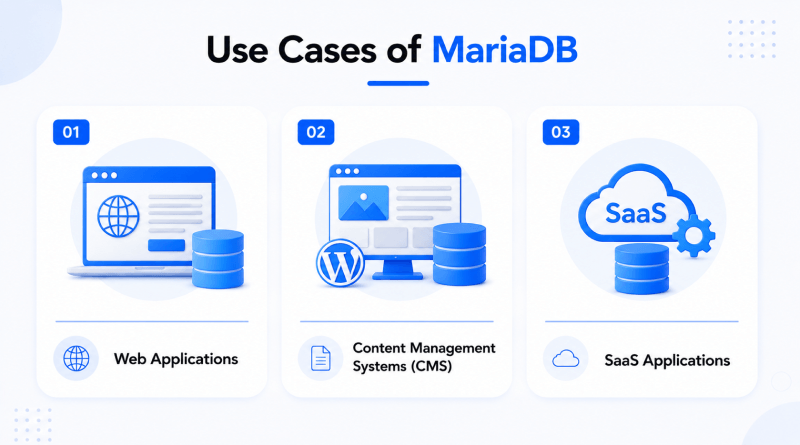
– Web Applications
Many web application developers choose to use MariaDB as their back-end database to store user accounts, product catalogs, transactions, and other application-related data. The speed and stability of MariaDB have made it a database choice for many developers backing their applications with a relational database.
– Content Management Systems (CMS)
Numerous content management systems, such as WordPress, Joomla, and Drupal, work seamlessly when used with MariaDB as their data store. In fact, many hosting providers also provide MariaDB as their default database engine when hosting platforms such as a CMS.
– SaaS Applications
MariaDB has become a go-to choice for companies that use Software-as-a-Service (SaaS) solutions to store customer data, track subscriptions, perform analytics, and operate their businesses. When coupled with Docker containers, deploying, scaling, and managing MariaDB across multiple environments is made simple.
What is Docker?
Whether you need a database for a small personal website or to power a large-scale application developed for commercial use, MariaDB provides a reliable database engine that works best when deployed in a Docker environment.
Docker allows applications to run in lightweight, isolated environments called containers. A container serves as the complete application package containing all the necessary files to execute the application. These include the application code, any dependent files, necessary libraries, and other configuration files.
You can visualize containers as portable, complete applications. Whether you deploy a container on your desktop, a virtual private server (VPS), or a cloud server, the functionality remains unchanged.
This is one of the main reasons developers choose to deploy MariaDB with Docker rather than manually.
Why Use Docker for Databases?
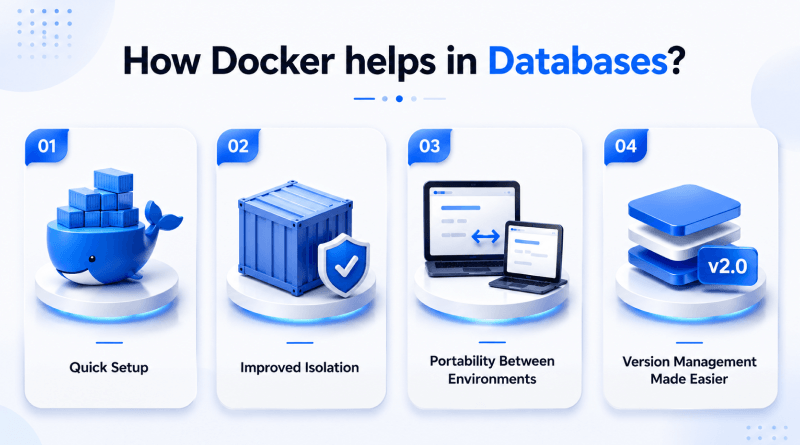
– Quick Setup
Traditionally, setting up a database manually was a tedious task. Downloading the software packages, configuring the required services, managing all of the dependencies, and potentially troubleshooting compatibility problems were just the first few steps. With MariaDB and Docker, the entire database now can be deployed with a single command, reducing setup time from hours to minutes.
– Improved Isolation
MariaDB containers operate independently from both the host system and any applications running on the same host. Thus, each container has its own environment, which reduces possible software conflicts and aids in troubleshooting.
– Portability Between Environments
Docker’s main benefit is that it is a consistent solution. If a MariaDB container operates properly in the local development environment. It also functions properly in the testing, VPS, or production environments. This prevents the “it works on my machine” scenario.
– Version Management Made Easier
Projects require different versions of the database at times. Docker allows you to run specific versions of MariaDB quickly and easily without affecting the other apps on your server. You can upgrade/downgrade and test/modify a specific database version without having to change the entire environment.
MariaDB is faster to develop, cleaner to manage, and provides greater flexibility when running on Docker for developers, system administrators, and businesses than using standard MariaDB principles and methods. The MariaDB reliability combined with the flexibility of using containers for deployment is perfect for the latest enterprise development and hosting processes.
How to Install and Use MariaDB via Docker?
Prerequisites
To ensure that your environment is prepared before, you need the following configurations:
- Docker Installed
First and foremost, you need Docker. This could either be Docker Desktop for use on Windows and Mac computers or Docker Engine when using a Linux server. After installing Docker on your machine, open a command prompt (CMD) and type the following command to check that Docker is installed correctly and working:
docker –version
If Docker is installed and running properly, the terminal will show the currently installed version of Docker.
- Basic Linux/Terminal Skills
You don’t have to be a Linux wizard or a database administrator. However, some familiarity with the command line interface (CLI) is beneficial. Most commands associated with the MariaDB Docker image are run from a command line, including pulling images, starting containers, looking at logs, and connecting to your database.
- System Requirements
MariaDB containers are small in size (lightweight) and can run on less powerful hardware. For development and testing purposes, the following specifications for your machine should generally work:
- 1-2 CPU cores.
- Minimum of 2GB of RAM.
- Minimum of 10GB of free storage.
- Docker engine installed or Docker desktop installed on your machine.
- A stable internet connection to download container images.
For production workloads, the resource requirements depend on the database size, the amount of traffic, and the application demands.
Once you have all of the above resources, you can install MariaDB Docker containers and create your first database instance.
With Docker installed, MariaDB can be up and running within minutes. In Docker, we use images as templates to create containers. So, first download an officially owned MariaDB image from Docker Hub to use it as our template.
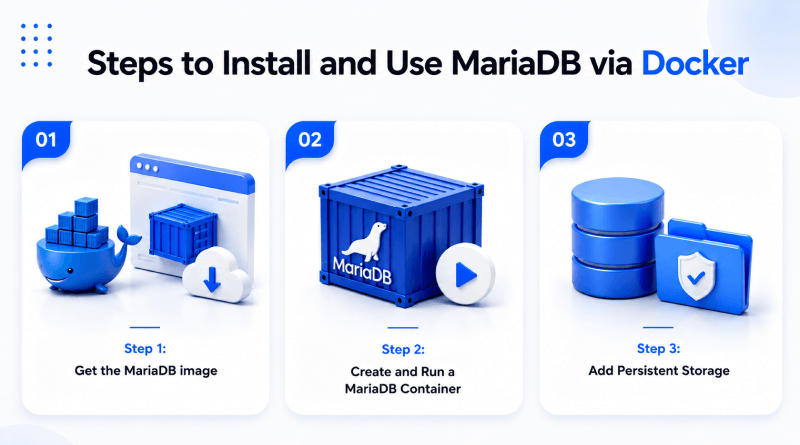
Step 1: Get the MariaDB image
To do this, run the following command:
docker pull mariadbAfter running the above command, Docker downloads the most recent stable version of the MariaDB image and stores it in your machine’s local repository.
If you want to download a specific version of the MariaDB image instead of downloading the most recent version, you can specify the version tag to include.
docker pull mariadb:11.8For production environments, it is often recommended to use tags that specify the version you want to use. This avoids potential differences in functionality from recent upgrades and changes made in future releases.
Next, verify that the image has been downloaded to your local repository:
docker imagesYou should see the following (MariaDB) among the list of images you’ve downloaded to your local repository.
Here’s an example of the output you will see:
REPOSITORY     TAG                IMAGE ID              CREATED
mariadb        latest            xxxxxxxxxxxx          2 days ago
At this point, we have everything we need from Docker to create a MariaDB container. Now let’s proceed with creating a MariaDB container, setting up a root password, mapping ports, and creating persistent storage so that our databases can survive if we restart the containers of MariaDB.
Step 2: Create and Run a MariaDB Container
In the second step, we create and run a MariaDB container, including setting a password for the root user and mapping the appropriate port(s) to allow connections.
The following command will create a MariaDB container and expose it on TCP port 3306.
docker run -d \
  --name mariadb-container \
  -e MARIADB_ROOT_PASSWORD=StrongPassword \
  -p 3306:3306 \
  mariadb
Step 3: Add Persistent Storage
Next is to add a persistent volume for storing the database files. This ensures that any data in the database remains available after either recreating or restarting your container instance. The data is located in a volume created by Docker outside of the currently running instance.
docker run -d \
  --name mariadb-container \
  -e MARIADB_ROOT_PASSWORD=StrongPassword \
  -p 3306:3306 \
  -v mariadb_data:/var/lib/mysql \
  mariadb
What Are The Key Docker Parameters?
When you use Docker to run MariaDB, you will see all sorts of commands with many parameters and options set to customize how your container operates, how it stores its data, and how your application connects to the database.
Let’s take a look at an example for a command to run MariaDB on Docker:
docker run -d \
--name mariadb-container \
-e MARIADB_ROOT_PASSWORD= StrongPassword \
-p 3306:3306 \
-v mariadb_data:/var/lib/mysql \
mariadb
We’ll break down some of the most critical parameters.
–name
Assign a custom name (like ‘mariadb-container’) to your Docker container.
–name mariadb-container
Using a custom name helps make managing the container easier and easier to identify instead of having to remember a randomly generated container ID.
-e (Environment Variables)
When you start up MariaDB, you have to configure the environment for starting it. This allows you to specify the root database password and other environment variables when deploying to create databases and users automatically.
-e MARIADB_ROOT_PASSWORD=StrongPassword-p (Port Mapping)
Port mapping connects your host machine to the MariaDB port on the Docker image running in your container. In the example above, the first number represents your host port, and the second number represents the port in your container. Since the default port for MariaDB is 3306, this mapping allows applications running outside of your container to connect to your MariaDB database.
-p 3306:3306-v (Volumes)
Volumes are used to persist the data for your databases. Without using a volume, you will lose all of your database data if you remove the container. When you use Docker volumes, you will ensure that your MariaDB data is retained across restarts, upgrades, or recreations of the container.
-v mariadb_data:/var/lib/mysql-d (Detached Mode)
This parameter indicates to Docker that the container should run “in the background” (detached) so you can keep using the terminal while the MariaDB server is running.
-d
Why Do These Parameters Matter?
Understanding these options is key to understanding the majority of MariaDB Docker deployments. Regardless of whether you’re using MariaDB for local development, testing, or for production, parameters such as: port-mapping, volumes, and environment variables, allow you to set up your database to be available and protected, and also to keep it around after shutdown.
How To Connect MariaDB in Docker?
The next step after starting your MariaDB container is connecting to your MariaDB database. This connection can be made either directly from your Host OS or from inside the container.
Option 1: Connect using your Host OS
You can use a MariaDB compatible client to connect to the running MariaDB database on the mapped host port (port 3306).
mariadb -h 127.0.0.1 -P 3306 -u root -pOr using the MySQL client:
mysql -h 127.0.0.1 -P 3306 -u root -pIf you’re using the MariaDB client, simply enter your MariaDB password. You’ll be connected to the MariaDB command-line interface. This allows you to create, edit, delete, and manage your databases, as well as create, edit, delete, and manage users and tables.
This method of connecting to MariaDB is used by developers to connect their local applications, CMS, and database management tools (phpMyAdmin, DBeaver, MySQL Workbench, …) to MariaDB running in Docker.
Option 2: Connect from Inside the Container
The MariaDB Server can be accessed directly through the container if needed. This is helpful for troubleshooting issues, managing the database, or testing configurations that were made to the database in the container.
- First, enter a shell into the mariadb-container, using the `docker exec -it mariadb-container bash` command.
- To connect to MariaDB Server from the bash command line, use the `mysql` command.
- Enter the root user’s password that was provided during the installation of MariaDB.
- You will then see the MariaDB prompt: `MariaDB [(none)]>`.
At this point, you can run SQL commands against the database, view the databases that are on the server, create new user accounts, and complete administrative tasks directly from inside the container.
Accessing MariaDB from your host machine or from inside the container both allow you to do everything with your MariaDB Docker database service. They are interchangeable and can be used based on what fits better in your workflow.
How To Create Databases and Users?
After completing the installation of the MariaDB server, creating a database and a dedicated user account for that database benefits your development efforts. By using a dedicated user instead of the root user for everything, you can improve your database security and make permission management easier.
Creating a New Database
Next, you can create a dedicated user account:
CREATE USER 'appuser'@'%' IDENTIFIED BY 'StrongPassword';This command creates the user account “appuser” that can connect from any location.
Creating a New User
Now you will need to grant the new user access to your new database:
GRANT ALL PRIVILEGES ON myapp_db.* TO 'appuser'@'%';Flush the changes:
FLUSH PRIVILEGES;MariaDB will instantly update its permission tables.
Testing the Connection
Exit from the current session:
EXIT;Now you can test the new account:
mariadb -h 127.0.0.1 -u appuser -p;If successful, change to your new database:
USE myapp_db;If you received no errors, you have successfully created a new database and configured it for use with a new user account.
When using MariaDB Docker containers to run applications like WordPress, Laravel, SaaS platforms, and other production loads, establishing dedicated databases and users is critical. This keeps your setup organized and follows basic database security best practices.
How To Use Docker Compose for MariaDB?
Using a single Docker run command will work for deploying quickly, but managing your databases is easier when using Docker Compose. You will no longer have to remember long commands since you can define all of your MariaDB configuration in one single file. Therefore, you can consistently deploy all of the MariaDB configuration every time it is needed.
This method is ideal for developing environments, multi-container applications, and production deployments. This configuration will automatically do the following:
1. Create a Docker Compose File
Create a new file called:
docker-compose.ymlAdd the following configuration:
services:
 mariadb:
   image: mariadb:latest
   container_name: mariadb-container
   restart: unless-stopped
   environment:
     MARIADB_ROOT_PASSWORD: StrongPassword
     MARIADB_DATABASE: myapp_db
     MARIADB_USER: appuser
     MARIADB_PASSWORD: AppPassword
   ports:
     - "3306:3306"
   volumes:
     - mariadb_data:/var/lib/mysql
volumes:
 mariadb_data:
This configuration automatically
- Create a MariaDB container
- Set the root password
- Create a database at startup
- Create an application user
- Map port 3306
- Set up persistent storage
- Restart the container if needed
2. Launching the MariaDB Stack
Start your container with the following command:
docker compose up -dIf you do not already have a MariaDB image downloaded, it will download the image and start the database in detached mode.
You can check that your container is running by typing in:
docker compose ps3. Viewing the Logs of your Container
If you would like to view the log output from the MariaDB container, use the following command:
docker compose logs -fWhen you run this command, it will give you a continuous stream of output from the MariaDB container.
4. Stopping your Container
To stop the database without removing the data, type the following:
docker compose stopYou can start the container up again at any time by typing the following:
docker compose start5. Removing your Stack
To stop and remove all of the containers created by using Docker Compose, run the following command:
docker compose downThe data for the database is stored in a Docker volume. Therefore, if you want to remove your data, you will have to explicitly delete the volume that the database is using.
What Are The Common Use Cases for MariaDB in Docker
One of the biggest advantages of running MariaDB on Docker is flexibility. The same containerized database can be used for development, testing, and production environments without major configuration changes.
1. WordPress + MariaDB Deployment
Many WordPress users choose MariaDB as their database solution. Deploying MariaDB Docker containers in conjunction with your WordPress application greatly enhances the speed and ease (deployment process), particularly when utilizing Docker Compose. Both MariaDB and WordPress operate in their respective isolated containers but still communicate over the same Docker-based network, thereby creating clean and portable hosting environments.
2. Local Development Environments
Many developers create local application development environments using MariaDB Docker containers. This way, they don’t need to install a database directly onto their operating systems. Instead, they can spin up a temporary instance of MariaDB any time they need to test code or perform action within an application. By keeping application development environments clean without the software installed directly onto hard drives, developers minimize the application compatibility issues. This is simpler to switch between different versions of MariaDB as they test the software.
3. Testing a Database Migration
Database schema changes and migrations result in unforeseen challenges. Developers leverage MariaDB Docker to build temporary test environments with databases (these are just a copy of the production database). This allows developers to validate their proposed migrations, upgrades, and changes to the application before deploying them into production, thereby mitigating the risk of downtime or data loss.
MariaDB Docker Commands Cheat Sheet
After you have a working MariaDB Docker container, you’ll find yourself using a few basic Docker commands repeatedly for managing, troubleshooting, and maintaining your container. Having these basic commands available makes your everyday database administration jobs much easier.
📌 MariaDB Docker Command Cheat Sheet
Command
Purpose
docker start mariadb-container
Start a stopped MariaDB container
docker stop mariadb-container
Stop the running MariaDB container
docker restart mariadb-container
Restart the container
docker logs mariadb-container
View container logs and error messages
docker logs -f mariadb-container
Monitor logs in real time
docker exec -it mariadb-container bash
Open a shell session inside the container
docker inspect mariadb-container
View detailed container configuration and networking information
docker ps
List all running containers
docker ps -a
List all containers, including stopped ones
docker images
View downloaded Docker images
docker compose up -d
Start MariaDB using Docker Compose
docker compose down
Stop and remove Docker Compose containers
docker compose logs -f
View Docker Compose logs in real time
Closing Insights
Using Docker containers to run MariaDB gives you the benefits of a free, open-source database with the ease of deploying and managing lightweight containers. Instead of installing and maintaining an application, you can quickly deploy, manage, and scale MariaDB within a containerised environment.
Our detailed guide shows how to connect to the database, create users and databases, set up persistent volume storage for your database, and manage your deployments using Docker Compose. These functions allow developers, systems administrators, and businesses the ability to use MariaDB on Docker for an effective, flexible, and simple database environment. As your projects get larger, Docker Compose becomes increasingly important. It allows multi-container deployment, increases consistency across various environments, and makes maintaining a database by using Docker Compose easier.
Whether you are creating a WordPress site, developing a software as a service (SaaS) application, or creating a local testing environment for your application, depending on the projects you are developing, running MariaDB with Docker is a great way to have a portable, lightweight, and efficient database environment for your workloads.
FAQs
1. Is MariaDB Docker suitable for production?
If your MariaDB Docker instance is appropriately configured, you can safely use it in production. Deploy a MariaDB instance that ensures availability and reliability by following certain best practices, such as the use of persistent Docker volumes, strong passwords, regular backups, resource limits, and secure network settings. Numerous businesses make use of MariaDB with Docker in their web, SaaS applications, and containerized workloads.
2. How do I persist data in MariaDB Docker?
Persistent data is achieved using Docker volumes. By mounting your volume to MariaDB’s data directory (/var/lib/mysql), your databases remain intact after restarting, updating, or recreating the container. This is regarded as a best practice for deploying any MariaDB Docker instance.
3. What port does MariaDB use in Docker?
Port 3306 is the default port for MariaDB. This port will typically be mapped to the host machine when executing MariaDB via Docker with the following syntax:
-p 3306:3306
You can connect to the MariaDB instance through the mapped host port using client applications or through application database clients such as MySQL Workbench or phpMyAdmin, provided you’re able to access the host that is running the Docker instance.
4. Can I run multiple MariaDB containers?
Yes, you can run multiple MariaDB Docker containers on one physical server as long as you assign separate host ports per MariaDB container. The internal port for MariaDB will always remain the same.
For example:
-p 3306:3306
-p 3307:3306
By mapping ports using a different host port for each container, you can run multiple instances of MariaDB independently without concern for port conflicts. This is especially useful for development, testing, and multi-application environments.