

 Sommaya Singh
Your ISP may promise 1 Gbps internet speed, but local network bottlenecks inside your home, office, or web hosting server environment can still slow down file transfers, gaming, or application performance. Which mechanism would you prefer? The blog extensively discusses OpenSpeedTest, a free, open-source HTML5 internet speed test tool compatible with many devices and web browsers.
So, what is OpenSpeedTest? If you are testing or deploying a LAN-only application to the world, gain knowledge of the OpenSpeed server, its features, and accurate speed-test metrics.
Before examining what OpenSpeedTest measures, this blog underscores its features and benefits.
Key Summary — What is OpenSpeedTest?
- 1 What it is: A free, open-source, HTML5-based speed testing tool that works directly in any modern web browser — no plugins required.
- 2 How it works? Measures latency, download speed, and upload speed by exchanging data packets between the browser and test server.
- 3 Key features: Supports speeds from 1 Kbps to 10 Gbps+, browser-sandboxed for security, and built with static HTML/CSS/JS for a lightweight experience.
- 4 Self-hosting: Deployable via Docker, desktop app, or mobile — ideal for LAN testing without an internet connection.
- 5 Who it’s for? Home users, remote workers, and IT teams needing quick diagnostics on local networks, routers, or ISP performance.
💡
This article walks you through the core functionalities of OpenSpeedTest.
Table of Content
What is OpenSpeedTest?
OpenSpeedTest measures the real-time internet performance without using Adobe Flash, third-party apps, or plugins. Built on the HTML5 core technology, it delivers high-accuracy speed measurement across networks ranging from 1 Mbps to 10 Gbps and beyond.
Adobe Flash had years of dominance in multimedia web experiences. Yet, its limited platform accessibility creates friction for users across different devices and gadgets. Third-party plugins were the core reason behind Flash’s downfall. OpenSpeedTest eliminated the accessibility barrier by allowing you to run a speed test on any device with a modern web browser right out of the box.
How to Use OpenSpeedTest?
- Open your web browser on any device.
- Navigate to the official website of OpenSpeedTest.
- Start the speed test by clicking ‘Start Test.’ (A blue play button)
- Wait a while to get the accurate broadband speed. If it crosses 90, then you have a good internet speed.
💡
Pro Tip
Disable Data Savers: Make sure browser extensions or mobile data-saving modes are turned off, as they can interfere with speed test results.
How Does OpenSpeedTest Actually Work?
- Latency: A browser calculates the round-trip time of HTTP requests between the test server and the browser. OpenSpeedTest calculates this time in milliseconds.
- Download Test: The browser continuously requests data packets of increasing server size in a couple of seconds. OpenSpeedTest’s algorithm measures sustained speed rather than the momentary spikes that typically occur during heavy file downloads.
- Upload Test: Final upload speed is determined by the pace of web browsers that can generate and transmit data packets, which are unable to cache to the destination server.
💡
Pro Tip
Use Fast Devices: For self-hosting, run the server application on the fastest, most capable machine connected directly to your router for the best baseline performance.
What Are OpenSpeedTest Use Cases?
| 👤 Who | 🔍 Scenario | 🛠️ What to Test | ✅ Key Benefit | 🚀 Test Mode |
|---|---|---|---|---|
| Home User | Slow Netflix or YouTube buffering despite good ISP plan | Download speed + jitter | Pinpoint if issue is ISP or router | Browser Test |
| Gamer | High ping and lag spikes during online matches | Latency (ping) + upload speed | Identify lag source before a session | Browser Test |
| Remote Worker | Video calls freezing or dropping mid-conference | Upload speed + ping stability | Ensure bandwidth meets call demands | Browser Test |
| IT / SysAdmin | LAN slowdown between internal servers or VLANs | LAN throughput without internet | Diagnose network bottlenecks accurately | Self-Hosted |
| Network Admin | Post-installation check after new router or cable setup | Full speed + jitter baseline test | Validate equipment before going live | Self-Hosted |
| Office Manager | Wi-Fi dead zones reported across office floors | Speed at multiple access points | Map weak zones without extra tools | Mobile App |
| NAS / Homelab | Slow file transfers to local NAS or Raspberry Pi storage | Local LAN speed via self-hosted server | Check if cable or switch is the limit | Docker / LAN |
| DevOps / Cloud | Continuous monitoring of server network performance | Sustained speed via Docker container | Headless 24/7 network health monitoring | Docker Deploy |
Test accuracy may vary based on device hardware, browser version, and local network conditions at the time of testing.
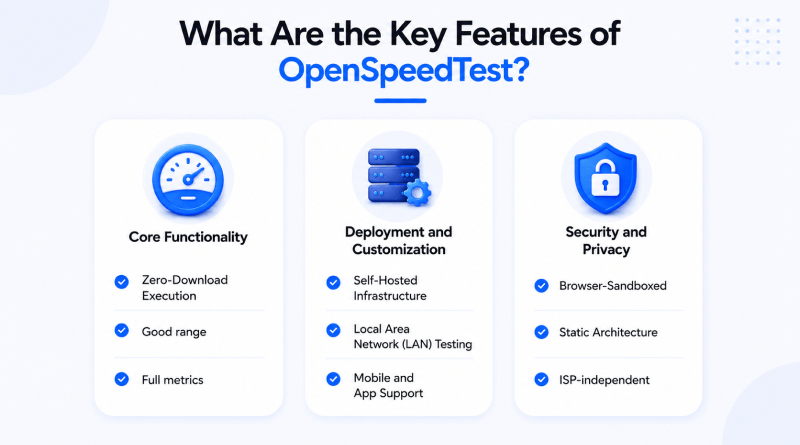
What Are the Key Features of OpenSpeedTest?
1. Core Functionality
- Zero-Download Execution: OpenSpeedTest is accessible on modern web browsers using standard HTML5 APIs, eliminating the need for Java or third-party plugins.
- Good range: May measure connection speeds from as low as 1 Kbps up to more than 10 Gbps.
- Full metrics: Monitors upload/download, ping, and jitter, and gives extensive network stability assessments.
2. Deployment and Customization
- Self-Hosted Infrastructure: Use Docker Hub to host your own speed test server on Linux, macOS, or Windows. It’s lightweight in nature, built with Alpine Linux and NGINX.
- Local Area Network (LAN) Testing: Ideal for testing the performance of your local router or NAS storage, or for testing the LAN environment without internet for Wi-Fi dead zones between devices.
- Mobile and App Support: Dedicated server applications for Google Play and the Apple App Store to easily convert your mobile device into a local speed test server.
3. Security and Privacy
- Browser-Sandboxed: Execute locally, in your browser, lowering the security concerns of installed applications.
- Static Architecture: Only static HTML, CSS, and JS files make up the application—no hidden exploits!
- ISP-Independent: ISPs don’t prioritize their traffic, which provides a more realistic measure of network performance than proprietary testing platforms.
How to Self-Host OpenSpeedTest (Server Setup)?
1. Using Docker (Recommended for Servers)
Docker is the standard for headless, permanent deployments on Linux servers, NAS (like Synology), and Raspberry Pi.
- Quick Run Command:
Open your terminal and run:
docker run --restart=unless-stopped --name openspeedtest -d -p 3000:3000 -p 3001:3001 openspeedtest/latest- Port 3000: HTTP access.
- Port 3001: HTTP access (useful for testing secure features such as microphones or cameras in other apps.)
- Docker Compose:
Use Docker Compose. yml file for a managed setup:
services:

openspeedtest:

image: openspeedtest/latest

container_name: openspeedtest

restart: unless-stopped

ports:

- "3000:3000"

- "3001:3001"
2. Desktop Application (Windows, Mac, Linux)
For a fast local server (not with Docker)
- Download it by visiting the OpenSpeedTest site or the Microsoft Store.
- Setup: When you open the application, click “Start Server.”
- Application Firewall: Make sure that it is permitted to pass through the application firewall “private networks” upon request.
Accessing the Server
- As the server is running (Docker/via app), the dashboard will give you a local IP and port.
- On a client device (phone, laptop, tablet), launch any of the web browsers.
- Enter the server’s address—http://192.168.1.5:3000—and click ‘Start’ to start the test.
Who Should Use OpenSpeedTest and When?
Who Should Use It?
- Home Users & Gamers: OpenSpeedTest tests how stable your residential Wi-Fi is.
- Remote Workers: Remote workers using heavy bandwidth needs for intensive operations like video conferencing and remote desktop will benefit from having a high-bandwidth router.
- Network Administrators and IT Teams: Used to diagnose LAN slowdowns, test Ethernet cables, evaluate router throughput, and determine bottlenecks between two or more VLANs (Virtual LANs) and/or servers.
When to Use It?
- Troubleshooting Slow Connections: When the internet service provider’s speed signals good network performance, but browsing the local file is sluggish.
- Testing Local Area Network (LAN) Speed: When transferring large files between the computers and Network Attached Storage (NAS), ensure the maximum bandwidth.
- Assessing Network Equipment: Prior to changing routers, connecting Wi-Fi repeaters, or swapping Ethernet cables.
- Headless or Large-Scale Deployments: If you require a Docker container solution for continuous monitoring of a network, don’t worry about the headless or large-scale deployments.
Conclusion
OpenSpeedTest is beyond a simple internet speed checker. It is a web browser-based tool built on HTML5, providing accurate internet connectivity insights. The speed checker tool measures download and upload speeds directly through your browser, ensuring seamless accessibility across platforms.
Easily moves from station to station; great for quick-time diagnostics, troubleshooting network problems, checking Internet Service Provider (ISP) performance, or simply curiosity. OpenSpeedTest is easy to use and does not require a plugin or third-party application to assess internet performance, ensuring transparency and accessibility.
OpenSpeedTest empowers users with reliable data, making informed decisions about the connectivity. It offers a seamless, accurate, and convenient experience, both as a casual user and as part of the monitoring network health, all in one click.
FAQs
1. Is OpenSpeedTest free to use?
OpenSpeedTest is an open-source tool that does not require subscriptions, commercial licenses, or client-side application installations to run tests.
2. Is OpenSpeedTest safe?
Yes, OpenSpeedTest is secure for businesses; it runs within a web browser without requiring Java or a third-party plugin. Furthermore, if you deploy it on a local server, all data is stored on a private network, ensuring no privacy leaks.
3. Which is the most precise speed test?
The best test of speed will vary based on your needs. Ookla’s Speedtest.net has an extensive global network of servers, making it the most accurate test of your real-world ISP performance, while Netflix’s Fast.com is accurate for testing video streaming speeds.