

 Arthur Rowley

Figma plugins provide a browser-based user interface that helps you design websites in a better way. Web designers worldwide use this software to create everything from casinos that boast titles such as Book of Ra to landing pages for industry-leading companies. If you wish to learn more about these plugins, continue reading.
Summary (TL;DR)
The blog lists 12 essential Figma plugins that streamline and improve the design workflow for UI/UX professionals. It covers tools to auto-generate realistic content (Content Reel), access free high-quality images (Unsplash), add custom illustrations (Stories), animate designs (Figmotion), insert icons (Iconify), embed live maps (Mapsicle), create data charts (Charts), produce 3D mockups (Vectary 3D), use prebuilt templates (Wireframe), experiment with typography (Font Preview), catch spelling errors (Spelll), and fetch company logos (BrandFetch).
The piece concludes by highlighting the general benefits of using Figma plugins, such as cross-platform support, improved collaboration, prototyping features, and enhanced efficiency.
Table Of Content
Top 12 Figma Open-Source Plugins:
Below is the list of the best Figma plugins for web design that will make your work easier and are used by some of the best designers.
1. Content Reel: Say Bye to Lorem Ipsum
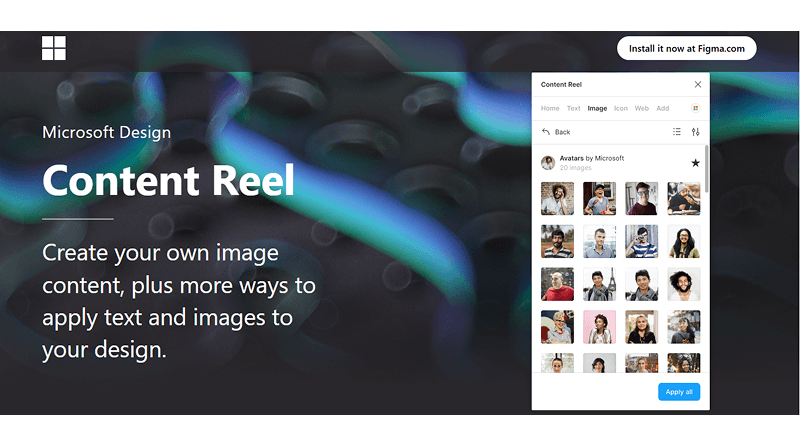
Content Reel is considered not only essential but also one of the best Figma mock-up plugins. It allows the user to generate good content like dates, avatars, addresses, currency, icons, and much more. This plugin enables your content to give out a more realistic vibe, and it feels natural, which is quite hard to see nowadays.
Apart from all this, it provides you with some of the best yet limited names, but you can always access more using the libraries and search options. Even though it allows for a massive variety of designing options, and actually, it’s also free. Now, you don’t have to worry about limited options per day. You can use this as much as you like and create blissful content. It is also easily downloadable. All you have to do is press install Figma plugin and run it, and that’s it!
You’ll be enjoying your beautiful days with this app.
2. Unsplash: Free Top Quality Stock Images
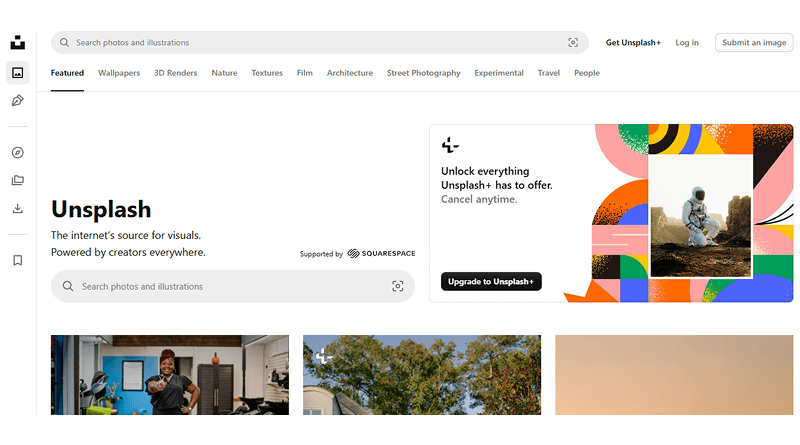
Every designer and marketer has always dreamed of making their design as attractive and appealing as possible. Images are considered one of the most appealing and eye concealing tricks that attract the majority of the users. Nobody loves an image that’s either blurry or has low pixels. Unsplash provides you with the most amazing top-notch photos. It also has a gigantic library filled with one million+ stock photos of almost every category.
This includes animals, technology, portrait, nature, and much more you can imagine. They’re not only free but also easily accessible in Figma. Many designers around the world have rated it one of the best Figma plugins for web design. It is also easily accessible, making it one of the most prominent installed plugins on Figma.
3. Stories: Free Amazing Illustrations
Illustrations are probably one of the best ways to make your design aesthetically pleasing and attractive on Figma. These illustrations provide a fantastic desktop interface and an excellent mobile interface that allows the viewer to enjoy the visuals of the designs to their fullest. Apart from being elegant, you can also edit these designs according to your desire.
Not only that, it has a vast library that is filled with at least 1000+ illustrations that are of the highest quality. Each of them can be customized and edited according to your needs. Stories also have a unique feature that allows you to pick illustrations using various other options. These micro features make it one of the best Figma illustration plugins that you may come across.
4. Figmotion: Be A Pro At Animation
The majority of the designers are always looking to make their designs more creative and enjoyable. Fig Motion is a unique yet one of the best WordPress Figma plugins that can add animation to your design. It surely has one of the simplest yet impactful experiences a designer can use to hook their users. However, creating animation in the plugin is a bit difficult. Once you get the hang of it, it’ll be more accessible.
It has been seen that sometimes even illustrations have not delivered what designers wish to do. This is a significant reason why they prefer Figmotion over everything. If you’re one of those who do not know it, let us guide you through the process of creating an animation :
- Select the adequate Figma frames
- Launch Figmotion
- Select your desired element that you wish to animate
- Press the Timeline and Diamond option to proceed with animation
- Play it, and here you go!
5. Iconify: Become The Alchemist Of Icons
Is there a better and more beautiful way than using icons on your design palette? We don’t think so. However, we indeed have something that allows you to create Figma icons and top-quality. These icons work as a button for implying various actions on the websites. This includes search icon, navigation icon, setting icon, and many more. It will give you more than you can expect from a Figma plugin WordPress that creates icons.
You might find icons and various emojis, the Figma logo, and some other designing-related elements. However, they are freely editable and are available in SVG format that converts codes into icons. Apart from that, it has probably one of the largest libraries of icons that number at least 1 million. Many creators, designers, and marketers use this website for giving their website a classic touchup with the Figma components.
6. Mapsicle: Navigation On Website
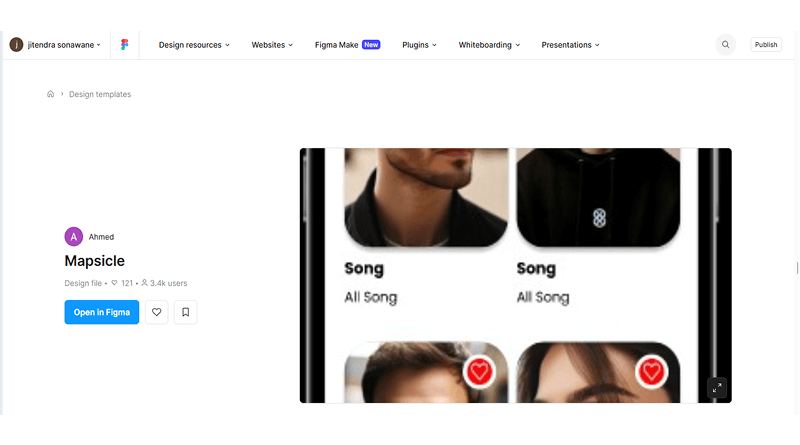
There are also many occasions when you want to navigate something with the help of a map, and obviously, there’s no illustration or image for that. Mapsicle allows you to connect maps for custom Figma designing. The connected map is the real-time map, which is a unique feature of this website. It also has some other special features which allow it to turn on the dark mode of the map and give you a pleasing experience, especially if you’re using it at night.
Apart from that, it gives out a high-quality user experience, along with satellite display and the availability of 3D maps. If you wish to zoom in on the map and view the surrounding area more clearly, all you have to do is type 0-22 inside the field you wish to zoom in.
7. Charts: Create Data-Oriented Charts
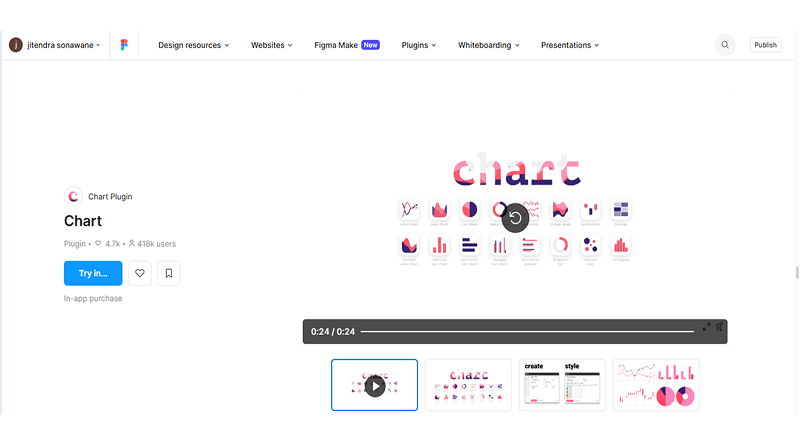
Is raw data reducing your user experience on your website? You probably should use charts to show data in a more organized and straightforward manner. Not only does that make it look pleasing, but also visually attractive. The majority of the creators use charts and graphs for plotting out various information on their websites. This attracts many users to your website, more than you would’ve by simply putting on illustrations for depicting this kind of data.
It allows you to present Figma figures on your website but also packed few flaws. This WordPress Figma plugin doesn’t let you put up actual information inside the charts. Until now, it is the best Figma prototype for using charts on your website that can be used on Figma.
8. Vectary 3D: Incredible 3D Mockups
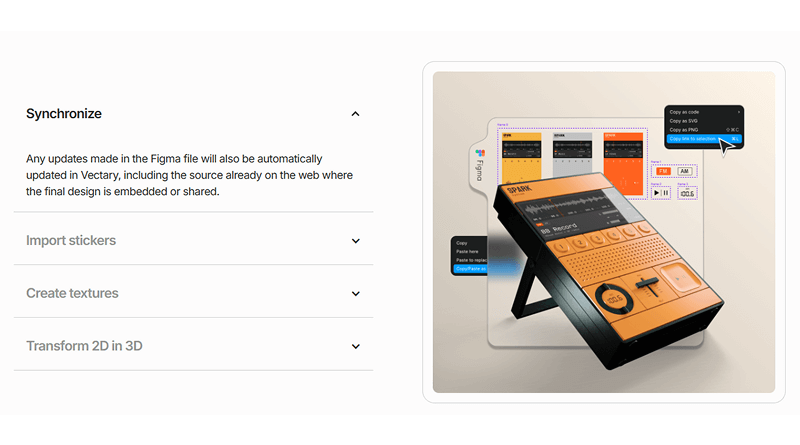
Whenever a designer is done with designing part of a website, it is one of the most critical tasks to run that design on various other platforms. There’s another way as well for testing out the interface of the website. It is called visual testing, which allows the designers and creators to run a mockup. However, that takes a bit of work.
Vectary 3D reduces your work of running mockups or even testing it out on other platforms, making it one of the best Figma mock-up plugins. It not only provides you many device options for running the website design but also bottles. These bottles are different screen sizes which give out a detailed analysis of the user interface. It is a fun way to test out your designs and improve the user experience at the same time.
9. Wireframe: Work Smarter, Not Just Harder
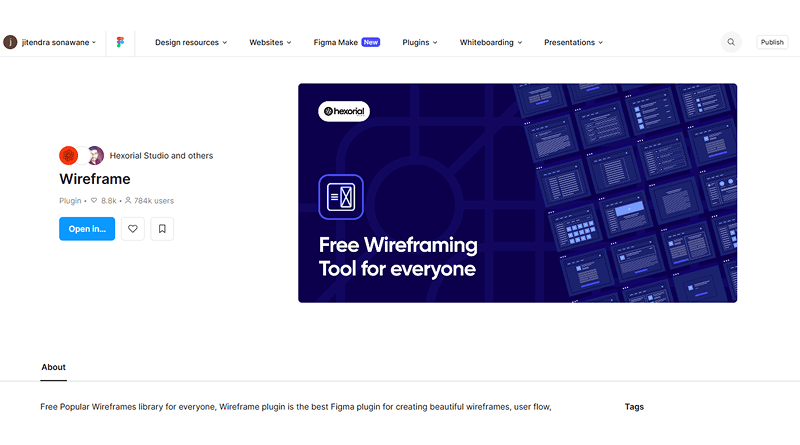
Earlier, these website designs have been created with a scratch that consumes time and is also inefficient. Wireframe gives you pre-made templates that save your time, i.e., efficiency, and gives out a newer perspective toward the designs. It allows the designers to focus more on improving the quality of the designs and adjusting them according to their needs.
Even you have noticed that the majority of the pages and websites follow a similar basis of a design, which is why you need to spend more time making yours stand out and use Wireframe. Just as important it is to work hard, working smart is also something you shouldn’t underrate. This Figma plugin WordPress is one of the most preferred Figma plugins for web design.
10. Font Preview: Choose Your Style
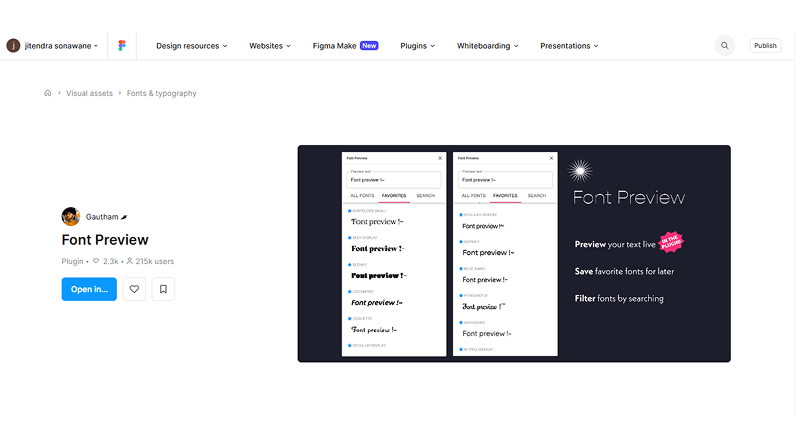
Every designer knows how important typography is on a website. Words have the power to either make your user experience unforgettable or just make them more confused. It’s essential to focus on text style, as using the same one on the whole page will make your website boring for a user. Font Preview allows you to break that chain of confusing designs and give your website a mind-blowing touch-up.
It contains 1000+ typography options that will not only suit your need but may also end up giving you a unique idea for your website. However, the text options of the Figma fonts have some unique styles, but most of the time, they’re either not what you’re looking for or don’t feel to you. Apart from styling your font the personal way, it also allows you to add size, color and then check how they look together. These micro features make it one of the most installed Figma plugin .
11. Spelll: Don’t Be an Average Typo Person
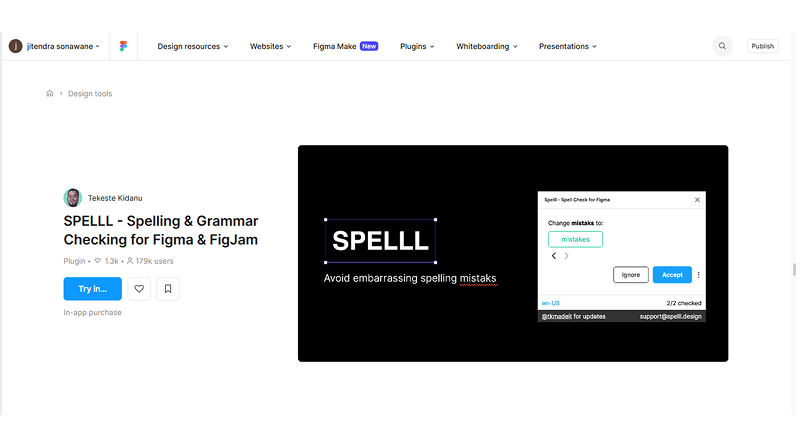
You won’t understand the importance of spelling unless you post something, and instead of enjoying it, people start pointing out spelling errors. We’ll make mistakes, and it’s a little common to miss a spelling mistake on your website even while you’re proofreading. Spelll allows you to not only highlight those spelling errors but also gives you solutions for the same.
Many designers don’t need this plugin, as they don’t type much. However, sometimes we need to make a blogging Figma app that needs some actual text orientation in it. A lot of typo errors can not only disappoint your user, but you might lose faithful followers. It is probably one of the best plugins that allows you to check out fonts and style them to give out a fantastic user experience.
12. BrandFetch: Become The Pro At Figma logo
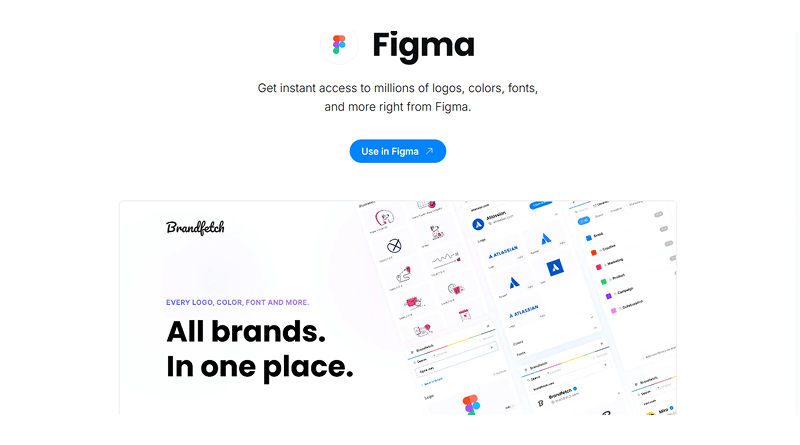
Trying to add social proof on your website by adding logos of various companies? Let us introduce you to a fantastic Figma logo plugin that allows you to add a logo to the website. BrandFetch is one of the finest plugins on the Figma that can help with logos for various companies.
It also allows you to save most of the effort and add aesthetically pleasing and minimalistic logos that increase user experience. All you have to do is search for the logo of the company and simply select it. That’s all it’ll take to add a high-quality logo to your website.
Read: 5 Apt Website Designing and Development Tools in 2021
How to Install Figma Plugin?
There are two simple steps to install Figma plugins:
- First, check out their ‘Figma Community’ page.
- Search for the required plugin from the library. For instance, we have selected the FontSwap to change the font style of artwork. Remember, Figma has free and premium plugins depending on the requirement.
- Next, tap the ‘Try it Out’ button displayed next to the plugins respectively.
- Then, log in through your Gmail, business email account, or existing Figma account.
- For free plugins you will see the ‘Open In’ option. In this, you can directly access plugins in your Figma project.
- Paid plugins have a ‘Try In’ option, click on it and access the plugin in your project.
- Finally, we have installed the plugin, and now, run it for the project.
How to Run Figma Plugins?
Run Figma plugins in Design Mode
- Once you have successfully installed Figma plugins, open the project window, where your artwork is under progress.
- Click on the actions button as highlighted in the screenshot.
- Next, choose the ‘Plugins and Widgets’ option.
- Some plugins may ask permission to access. Allow them.
- A plugin panel/window will open where you can configure settings and apply changes.
Run plugins while in Dev Mode
- Click Plugins in the right sidebar.
- Browse your recently used or saved plugins, or search the community for a plugin.
- Click on a plugin to run it.
- A plugins panel in Figma highlights plugin selection and management options with sections for recent, saved, and community plugins.
Pin Plugins in Dev Mode
- For easy access, you can pin frequently used plugins to the right sidebar.
- Find the plugin you want to pin from the Plugins tab.
- Click the […] More menu and select Pin to top.
- You can unpin a plugin by clicking the […] More menu and selecting Unpin.
Merits of Using Figma plugins for Developers on your website:
Plugins allow you to give out a visually engaging user experience that will help you bring out the true potential of your website:
- It can work on any platform. It doesn’t matter whether it is Mac, Linux, or even PC.
- It follows a similar interface as Google documents and lets your team collaborate pretty efficiently.
- It has Slack which allows an adequate team channel for addressing issues and updates.
- It allows sharing of files on a permission basis.
- Figma allows you to collaborate, comment, and even prototype in a singular website which enhances user experience.
- It supports in-app and in-prototype commenting.
- It can easily display complex selected frames into the most common frames that are used earlier.
- Intuitive and better prototyping between various frames
- Access to various features in a single website improves teamwork and collaboration.
- Design tools are quicker along with faster support of your work.
With so many Figma plugins come out greater advances in the user experience. These feature-packed plugins can turn your website upside down in terms of visual impact. Not only does it improve connectivity between teams, but it is also protected by its on-demand file sharing features.
FAQs
Can Figma plugins for developers speed up WordPress theme and plugin development?
Yes, Figma plugins for developers eliminate the manual task of translating visual designs into code by directly generating deployable CSS and assets from mockups. This technical bridge automates the extraction of spacing, typography, and color variables, allowing engineers to implement pixel-perfect WordPress themes without the overhead of manual code translation.
Is it possible to install a Figma plugin without advanced design or coding skills?
Absolutely, any user can install Figma plugin resources directly through the “Actions” or “Resources” menu without requiring a technical background. These tools utilize a simple, click-to-run system that enables beginners to automate complex tasks, such as generating realistic data or optimizing images, using an intuitive graphical dashboard.
Are WordPress Figma plugins suitable for collaborative teams and agencies?
Yes, a WordPress Figma plugin enables agencies to sync design iterations across departments in real-time. These tools centralize version control and feedback loops so every stakeholder stays informed throughout the transition from design to live environment.
Do Figma plugins for web design affect WordPress website performance?
Figma plugins for web design operate exclusively within the design application, meaning they do not add any code or weight to your live WordPress server. Since these tools run locally or in the browser to prepare assets before they ever reach the hosting environment, the resulting WordPress website remains optimized for rapid load times.