

 Sommaya Singh
Online stores aren’t static, and businesses regularly outgrow their original platforms as demand evolves. For many growing stores, that means moving from Shopify’s all-in-one simplicity to WordPress’s flexibility and content control.
Shopify and WordPress are two popular store builders. They offer built-in e-commerce tools, online payment gateways, and features like plugins and AI tools for instant store creation.
If you are a content-driven business owner looking to move from Shopify’s e-commerce platform to WordPress’ SEO features, this guide is for you. Professional Shopify-to-WordPress migrations can cost ₹95,000 to ₹1,00,000 based on the complexity and resources involved. This guide helps you cut costs by sharing steps and best practices for migration.
Key Summary — Shopify to WordPress Migration
- 1 Migrating gives lower long-term costs, full data ownership, stronger SEO, unlimited customization, and better blogging tools.
- 2 The process has 6 steps: export Shopify data, install WordPress + WooCommerce, import products/customers, migrate blog content, rebuild theme/design, configure payments.
- 3 Cart2Cart, LitExtension, and WP All Import speed up the transfer; a free/basic option exists for small catalogs.
- 4 Always back up first, test thoroughly after migrating, and set up 301 redirects to protect SEO rankings.
- 5 Small stores take 2–5 hours; larger stores take 2–4 days. DIY is free; professional help runs ₹95,000–₹1,00,000.
💡
This article comprehensively discusses about migrating from Shopify to WordPress.
Table of Content
What is Shopify?

Shopify is an online store builder featuring B2B tools, Launchpad for automated sales, POS Pro, and support. The SaaS-based store builder appeals to many business owners through its simplicity. It powers millions of online businesses with its all inclusive ecommerce platform. Its popularity is stated in revenue reports for 2025 reported ₹1,10,638.36 Crore ($11.6 billion) , an increase of 30% year-on-year (YoY) [2024-2025]. [Yahoo Finance]
[Also Read: Shopify vs. WooCommerce: A Perfect E-Commerce Analysis]
What is WordPress?
WordPress is the popular way to create your own website or blog. In fact, WordPress powers 43.5% of all websites, according to W3Techs. It is an open-source CMS (Content Management System) licensed under GPLv2, meaning anyone can modify the WordPress software for free.
Shopify vs WordPress for Ecommerce: What are Key Differences?
| Feature | Shopify | WordPress + WooCommerce |
|---|---|---|
| Hosting | ✓Included, no setup required | You pick your own host — budget ₹950–₹4,800/mo for anything decent |
| Starting price | ₹450/mo (Starter), but most real stores run Basic at ₹1,499/mo | “Free” software, but realistically ₹1,900–₹9,000/mo with hosting + plugins |
| Transaction fees | 2.9% + ₹28.62 unless you use Shopify Payments | ✓None — just whatever your gateway charges |
| Data ownership | Exportable, but lives on Shopify’s servers until you do | ✓Resides in your database from day one |
| Customization | Good enough for 90% of stores; hits a wall fast for anything highly custom | ✓No real ceiling, though you’ll need a developer eventually |
| Day-to-day maintenance | ✓None — that’s the whole pitch | Updates, backups, and security are on you or your host |
Costs and features can shift with plan tier, host, and store size — verify current pricing before publishing.
How to Migrate from Shopify to WordPress?
Prerequisites:
- Choosing between WordPress.com and WordPress.org.
- Scalable web hosting plans (cloud hosting, VPS hosting, or WooCommerce hosting).
- SEO framework to retain existing URLs.
1. Export Data from Shopify
Firstly, pull the basic data from Shopify to WordPress. Information such as consumers, inventory, orders, etc., can be exported from Shopify to CSV or PDF.
Organised and structured order data makes transferring to WordPress easier. The information should be accurate to prevent any migration hassles.
2. Installing WordPress and WooCommerce
Install WordPress and set up WooCommerce before migrating Shopify to WordPress. It turns WordPress into a responsive online retail shopfront.
With Command-Line (WP-CLI) access on your hosting platform, WooCommerce can be installed and activated with one click instead of clicking through a dashboard.
wp plugin install woocommerce --activateFlexibility is an additional feature that creates a framework for online sales, design changes, and plugin integrations.
As a result, proper configuration enables long-term growth beyond a successful Shopify and WordPress migration.
3. Installing Data into WordPress
Once you’ve installed WooCommerce, you will need to import your Shopify data. For the majority of retail store owners, it indicates that you upload your Shopify CSV straight into WooCommerce’s built-in importer: Products → All Products → Import, select your file, and match each column in Shopify with the matching field in WooCommerce.
Interesting to note: WooCommerce doesn’t have a one-line terminal command to import a CSV file. The only time WP-CLI is helpful is if you’re creating a single product or bulk updating it with a script:
wp wc product create --name="Product Name" --regular_price="19.99" --sku="SKU123"This is important since misaligned categories, missing SKUs, and inconsistent price structures are major migration headwinds. Test a small number of products (5–10) to ensure they are well-suited for the storefront and then import the catalogue.
4. Migrating Blog Content & Media Files
Content mirrors the brand identity. Hence, migrating blogs, images, and media assets without downtime or data loss concretizes the backend of your store.
WordPress importer plugins ensure unchanged SEO metadata, image quality, and post formatting during migration. So you can retain content for the valuable audience of your WordPress website along with maintaining the brand authority.
5. Setting up Themes & Design
The success of the responsive and online marketplace is due to the store’s UI/UX. WordPress themes can provide you with professional layouts, responsive interfaces, and advanced customisations. It has in-built adaptive designs for a compelling user experience. Ensure you migrate responsive designs from Shopify to WordPress to maintain the store’s artistic workflow.
WordPress has an extensive library of responsive themes and plugins, encouraging higher conversions and engagement rates throughout the shopping journey.
6. Configuring Payment Gateways & Plugins
Payment gateways setup and plugins configured, the migration is complete. Consumers expect secure and quick checkout options, so it is essential to be aware of this.
When you migrate your Shopify stores to WordPress, WooCommerce is able to handle PayPal, Stripe, and regional payment options.
Plugins enhance analytics, shipping and marketing automation. The features then finish the Shopify and WordPress migration process, making sure that businesses have the digital benefit and magnitude when relocating to the platform.
Why Migrate from Shopify to WordPress?
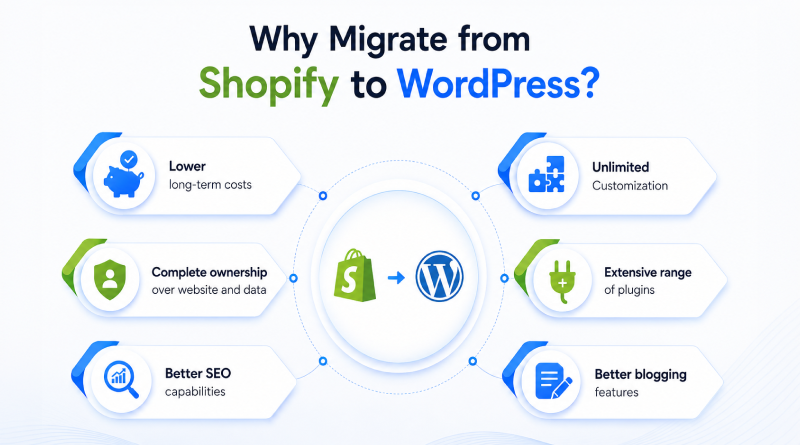
- Lower long-term costs: Shopify incurs recurring monthly costs, while WordPress’ core software is open-source. After signing up for web hosting and some premium plugins, most stores don’t bear the recurring Shopify costs.
- Complete ownership over website and data: Until you export your store, it resides on the Shopify infrastructure. With WordPress, your database belongs to you and is not obliged to the platform’s terms or conditions, ensuring seamless accessibility.
- Better SEO capabilities: WordPress allows you to get granular control over URL and the website’s structure. Shopify doesn’t feature the same , hence content-heavy stores outrank Shopify stores over time.
- Unlimited Customization: Shopify’s Liquid Templates are great until you require something add-on customization. WordPress is open-source PHP ensuring no barriers to custom functionality except the developer who executes the task.
- Extensive range of plugins: WordPress has a vast range of plugins available going beyond SEO, page speed, security and marketing automation that won’t cost you fortune like Shopify apps.
- Better blogging features: WordPress started out as a blogging platform, categories, tags, internal linking, and content scheduling are part of WordPress, and far more flexible than Shopify’s blog module, which was added on to an eCommerce-first platform.
What are the Right Tools & Plugins for Shopify to WordPress Migration?
The right tools and resources simplify the migration process, minimising technical challenges. Furthermore, automation helps to reduce the risk of data loss and saves time when migrating Shopify to WordPress.
Popular Migration Plugins
Dedicated toolkits and plugins are crucial for businesses moving from Shopify to WordPress. Plugins speed up migration procedures by automating data with exactness.
Some widely used plugins include:
- LitExtension: Automates large data transfers with near-zero downtime for sophisticated marketplaces.
- Cart2Cart: Offers step-by-step migration between WordPress and Shopify with robust support.
- WP All Import: Handles structured CSV uploads for products, categories, and attributes.
How to Ensure A Seamless Website Migration?
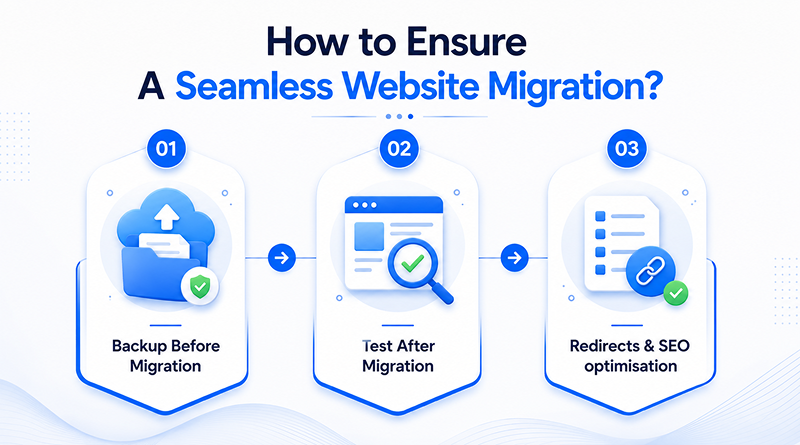
Underlying best practices ensure a smooth website migration without performance bottlenecks. Let’s delve deeper to the essential strategies for a successful migration.
1. Backup Before Migration
A complete backup eliminates the risk of data loss. This measure avoids operational disruption by safeguarding the store’s sensitive information.
Backups instantly restore data and evade data corruption or unexpected errors. For backup solutions, you can contact the MilesWeb’s support team or get Acronis Cloud Backup solutions for your online marketplace. A secured backup process builds confidence and reduces unforeseen migration risks.
2. Test After Migration
Testing is the next critical phase to verify that all information, design, and content are functioning properly. Moreover, you can discover several broken links in this phase. Unveiling them early upholds the business credibility.
Consequently, this practice ensures a stable Shopify and WordPress migration while enhancing the user experience across different devices and browsers.
3. Redirects & SEO Optimization
SEO performance determines the success ratio of the migration. The URL redirects during the migration process help search engines re-evaluate rankings. At the same time, this optimisation measure will safeguard organic visibility.
The SEO strategies to be done involve optimising meta tags, website structure, and mapping canonical links. Ultimately, businesses migrating from Shopify to WordPress must follow an SEO-first approach to lay the foundation of digital growth.
☆
What we’ve seen in practice:
e.g. “In roughly 1 in 5 migrations we’ve handled, the single biggest cause of a post-launch traffic dip wasn’t the product import — it was forgetting to redirect Shopify’s auto-generated /collections/ URLs. Check that path specifically before you flip DNS.”
Summing Up
Migrating Shopify to WordPress is categorised into six core steps: Exporting your Shopify data, setting up WordPress with WooCommerce, importing customers and products, and migrating blog content and media. WordPress plugins like LitExtension, Cart2Cart, and WP All Import surpass the professional service requirement by reframing the migration task as a DIY project.
The migration itself isn’t the hard part; protecting what you have built is. A complete backup before starting, a test that passes once finished, and proper 301 redirects on every URL are separate from a clean switch from an expensive one. Get those three right, and moving to WordPress gives content control, customisation, and platform ownership.
A sophisticated store has a large or complex catalogue; it is worth weighing DIY against hiring a migration specialist before beginning.
FAQs
1. Can I migrate from Shopify to WordPress for free?
Yes, you can migrate for free, but only if you do it manually. You can export your product data into a CSV file from Shopify and import it directly into WordPress (WooCommerce). However, automated migration plugins or hiring a professional will incur additional costs.
2. Will I lose my SEO rankings after migration?
Not if you handle the migration correctly. You will only lose rankings if your URL structures change without proper 301 redirects. To preserve your SEO, map your old Shopify URLs to your new WordPress URLs, migrate your meta titles/descriptions, and update your internal links immediately.
3. How long does Shopify to WordPress migration take?
A standard migration takes anywhere from a few hours to a few days:
- Small stores (under 500 products): 2 to 5 hours using automated tools.
- Large stores (thousands of products + blog posts): 2 to 4 days to ensure all data, design components, and SEO redirects are properly configured and tested.
4. Which plugin is best for Shopify to WooCommerce migration?
The best and most reliable plugins for this transition are:
- Cart2Cart: The industry leader for fully automated, accurate data migration.
- LitExtension: Excellent for bulk migrating products, customers, orders, and SEO URLs securely.
- Import Shopify to WooCommerce (by OmniExtensions): A great budget-friendly or free-tier option for basic product transfers.
5. Is WooCommerce better than Shopify?
It depends on your business needs. WooCommerce (WordPress) is better if you want absolute control over your website, lower long-term transaction fees, advanced SEO customization, and zero platform restrictions.
Shopify is better if you prefer a fully managed, hands-off hosting environment with built-in security and an easier initial setup.